Fix Sign-in Error Code AADSTS50105
User account is not granted access to this application
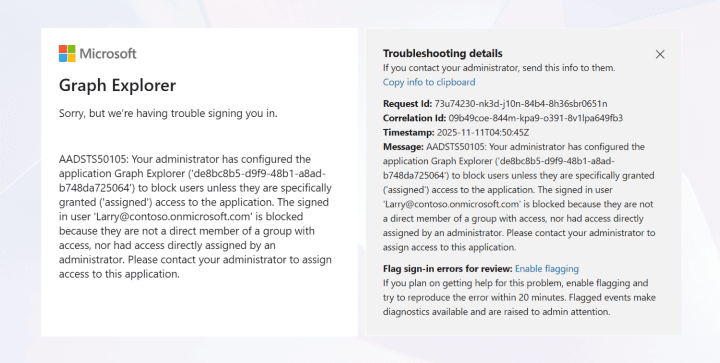


AADSTS50105: Your administrator has configured the application <AppName> (‘AppID’) to block users unless they are specifically granted (‘assigned’) access to the application. The signed-in user ‘UPN’ is blocked because they are not a direct member of a group with access, nor have access directly assigned by an administrator. Please contact your administrator to assign access to this application.
This error occurs when a user without access tries to sign in to a Microsoft Entra application that has been set to allow access only for assigned users.
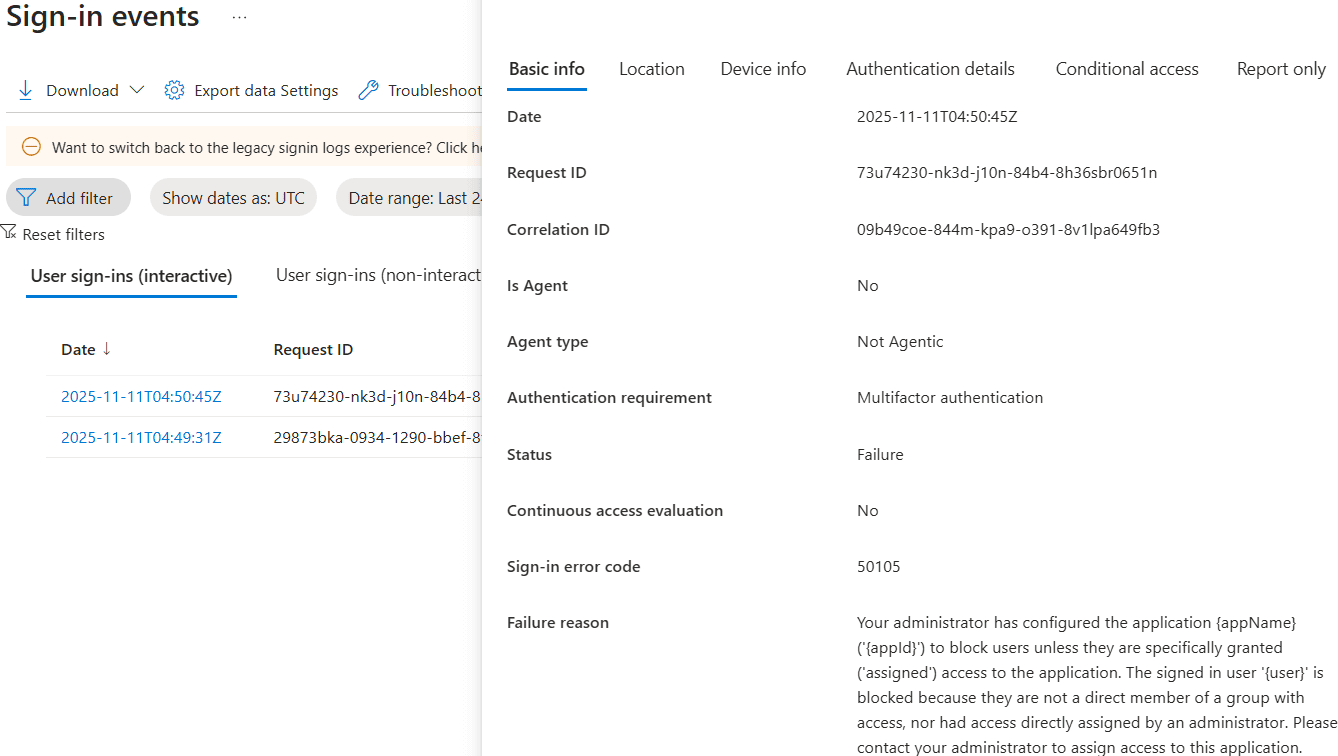
When users encounter this error, Microsoft 365 admins can examine it through the Entra ID sign-in logs with the error code AADSTS50105.
License Requirement
Microsoft Entra ID P1 License
Role Requirement
Reports Reader
You can check the detailed diagnostic information for the AADSTS50105 error using the following steps:
Log in to the Microsoft Entra admin center.
Navigate to the Sign-in logs under Monitoring & health.
Apply the following filters to locate relevant sign-ins.
Sign-in error code = '50105'
Username = Enter the users’ UPN
Date = By default, the date is set to last 24 hours. You can change it to last 7 days, 1 month, or customize it based on your needs.
Here, you can see the user's failed logins for the selected time range. Select the entry that matches the sign-in time of the error.
If the user is legitimate and you want to allow them to access the Microsoft Entra application, grant Enterprise application access to the Microsoft 365 user.
You can allow specific users to access the Entra application by assigning the permissions explicitly to the user. To do so, follow the steps below.
Sign in to the Microsoft Entra admin center.
Navigate to Entra ID » Enterprise apps » All applications and select the application you want to configure user assignments.
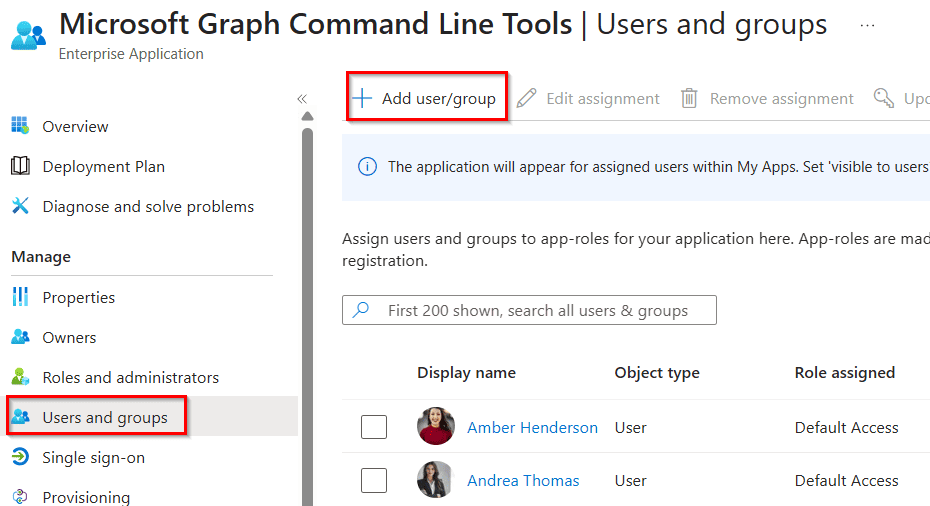
Choose Users and groups in the left pane under the Manage section and select Add user/group.
On the Add Assignment page, select None Selected under Users and groups.
Select the users that you want to assign the application and click Select.
Hit Assign at the bottom of the page to update the user assignment to the Entra application.
You can also assign groups to an application. Ensure to assign the required group directly to the application, as nested groups are not supported.

If you want all users in your organization to access an enterprise application, disable the user assignment by setting “Assignment required” to No on the application’s Properties page.

If these methods don’t resolve your issue, let us know in the ‘Discussion section’ below. We’ll assist you as much as possible. However, if the problem persists, contacting Microsoft Support may be necessary.