Troubleshoot Sign-in Error Code AADSTS50126
Invalid Username and Password



Your account or password is incorrect. If you don't remember your password, reset it now.
The error occurs when a user enters the wrong username or password during sign-in. Some of the possible causes of the error are:
The user entered the wrong password while trying to log in.
The user used cached credentials during login.
The user tried to sign in with their old password.
A malicious actor tried to access the account using a password-guessing attack.
When a user’s sign-in fails due to invalid credentials, M365 admins can observe the sign-in error code AADSTS50126 in the Microsoft Entra ID sign-in activity reports.
License Requirement
Microsoft Entra ID P1 License
Role Requirement
Reports Reader
When a user encounters this error, admins can identify its cause and retrieve failure sign-in details by following the steps below.
Log in to the Microsoft Entra admin center.
Navigate to the Monitoring & health » Sign-in logs.
Apply the following filters to locate relevant sign-ins:
Sign-in error code = '50126'
Username = <Enter the UPN>
Date = By default, it is set to the last 24 hours. You can change it to the last 7 days, last 1 month, or customize it as needed.
Click on the failed sign-in events for the specific time range.
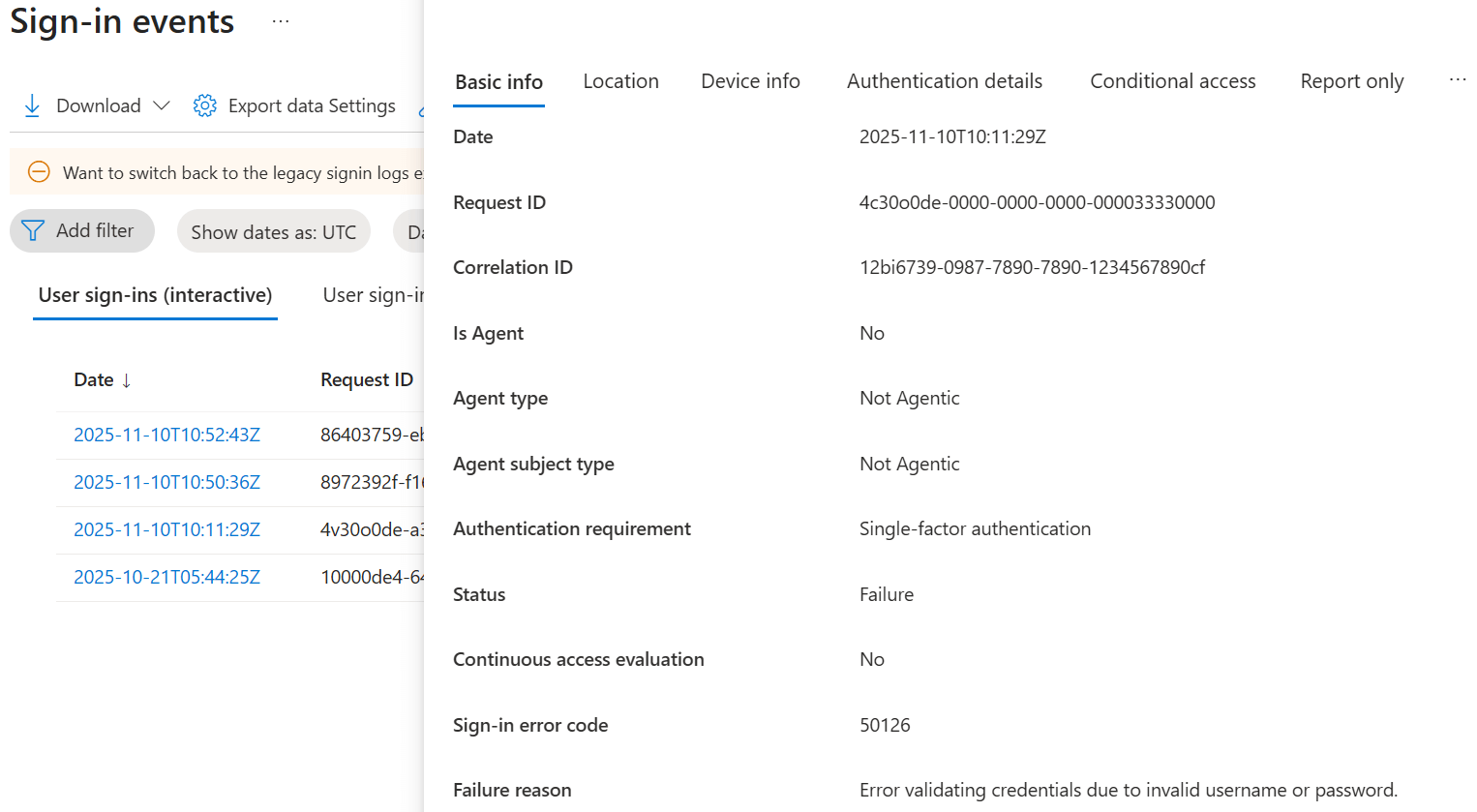
Verify that the user has entered the correct username and password. Instruct them to clear all cached credentials and attempt to sign in again. If the issue persists, reset the user's password using any of the following methods.
Reset the user password in Microsoft 365 admin center
Reset user password using Entra ID admin center
Update the Microsoft 365 user password using PowerShell
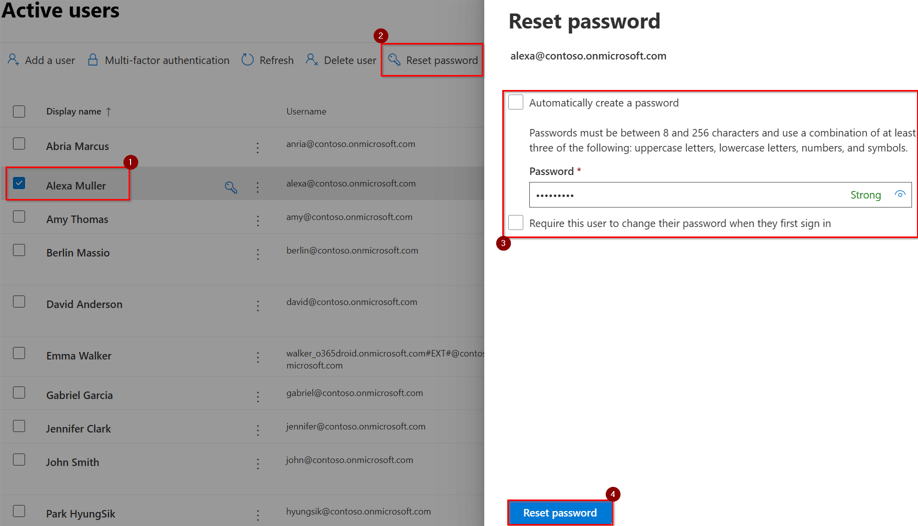
Follow the steps below to create a new password in the M365 admin center.
Sign in to the Microsoft 365 admin center and navigate to Users » Active users.
Choose the user whose password you want to reset and select Reset password on the top of the pane.
Select the Automatically create a password option if you want the system to generate a password automatically.
If you wish to create a custom password, uncheck the Automatically create a password option and enter a new password in the Password field.
Check the option “Require this user to change their password when they first sign in”, if you want the user to reset their password the next time they sign in.
Click Reset password to complete the reset process.
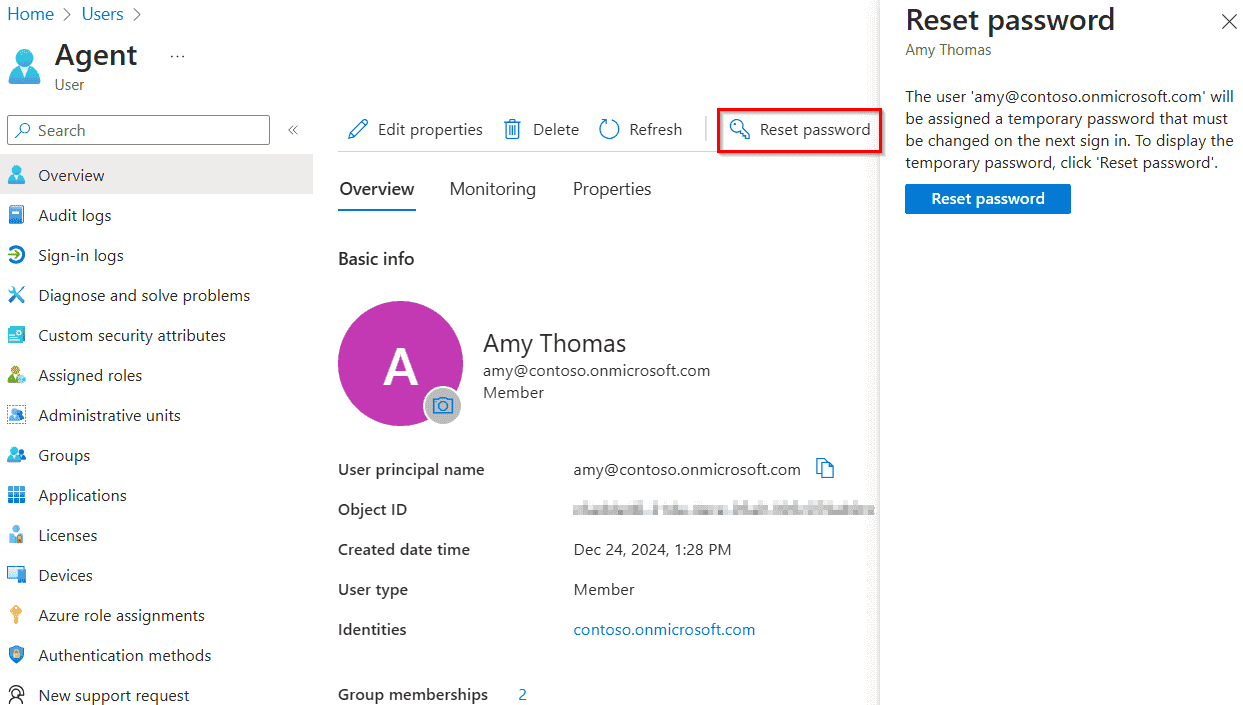
Admins can also reset the user password using Microsoft Entra ID. Here, a temporary password will be assigned automatically to the user that must be changed on the next sign-in.
Sign in to the Microsoft Entra admin center.
Navigate to Identity » Users » All users.
Locate the specific user and click on their display name.
In the toolbar, select Reset password.
Click Reset password button to generate the temporary user password.
Copy the password and share it with the user so they can sign in and update their password.
Follow the steps below to reset the user password using PowerShell.
Connect to Microsoft Graph PowerShell using the cmdlet below.
 Windows PowerShell
Connect-Graph -Scopes User.ReadWrite.All
Use the following cmdlet to set a password and force the user to change their new password the next time they sign in.
Windows PowerShell
                    $UPN="<UPN of the user you want to rest password>"
$NewPassword="<new password>"
$secPassword = ConvertTo-SecureString $NewPassword -AsPlainText -Force
Update-MgUser -UserId $UPN -PasswordProfile @{ ForceChangePasswordNextSignIn = $true; Password = $NewPassword }

You can also enable Self-service password reset for Microsoft 365 users, allowing them to reset their own password.
This sign-in error is common because users often overlook simple details. Before assuming something is seriously wrong, try these quick checks.
Make sure the username and password are correct.
Look for typos, extra spaces, or incorrect capitalization.
If self-service password reset is enabled, select Forget my password or reset it now on the sign-in page to update the password.
If none of these steps resolves the issue, reach out to your Microsoft 365 admin.

If these solutions don’t resolve your issue, feel free to leave a comment in the below ‘Discussion section’. We’ll assist you to the best of our ability. However, if none of the solutions worked, you may need to contact Microsoft Support for additional help.