Fix An Existing Permission Entry Was Found for User Error
Write-ErrorMessage : ||An existing permission entry was found for user: .
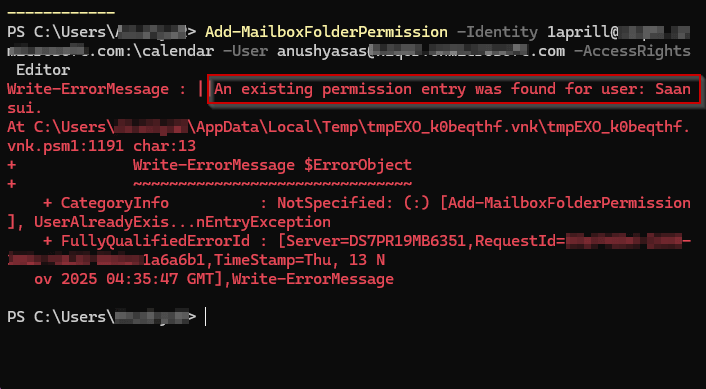


This error arises when you try to use the ‘Add-MailboxFolderPermission’ cmdlet to modify a mailbox folder permission that has been already delegated to respective users or groups.
Note: ‘Add-MailboxFolderPermission’ cmdlet is used exclusively for granting mailbox folder permissions for the first time.
Use the ‘Set-MailboxFolderPermission’ cmdlet to modify existing folder permissions for respective users or groups.
The Exchange admin center (EAC) doesn’t provide a straightforward option to manage mailbox folder permissions.
It primarily allows you to manage mailbox delegations, such as Full Access, Send As, and Send-on-behalf permissions.
Follow the steps below to manage the mailbox folder permissions using Exchange Online PowerShell.
Connect to Exchange Online PowerShell as an administrator.
Run the cmdlet below to check whether any existing permission has been assigned to the user‘s (1aprill) mailbox folder.
 Windows PowerShell
Get-MailboxFolderPermission -Identity <MailboxUserUPN>:\FolderName

If 1aprill's calendar folder has already been delegated to a user (Saansui), use the cmdlet below to modify the existing permissions:
Windows PowerShell
                    Set-MailboxFolderPermission -Identity <MailboxUserUPN>:\ -User <DelegatedUserUPN> -AccessRights <RolesOrPermissions>

#You can specify multiple permissions and roles separated by commas.

Ensure appropriate mailbox folder permissions are assigned to the delegated user to avoid overexposure of sensitive information.
Avoid repeatedly updating the same permissions to the same user or group, as this will trigger the following warning message.

If these solutions don’t resolve your issue, feel free to leave a comment in the below ‘Discussion section’. We’ll assist you to the best of our ability. However, if none of the solutions worked, you may need to contact Microsoft Support for additional help.