Fix Sign-in Error Code AADSTS53000
Access blocked. Update your device to meet compliance policies.
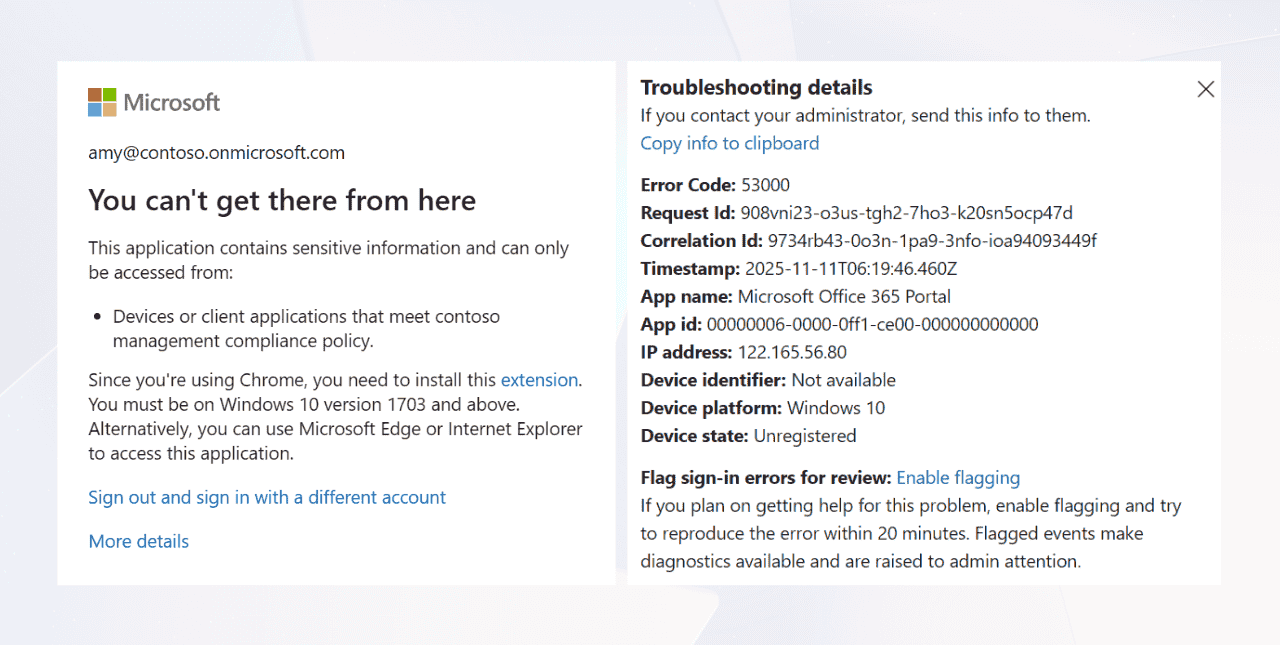


You can’t get there from here. This application contains sensitive information and can only be accessed from:
Devices or client applications that meet <tenantname> management compliance policy.
This error occurs when a Conditional Access policy blocks sign-ins to Microsoft 365 services from a non-compliant device.
When users encounter this error, Microsoft 365 admins can view the error code AADSTS53000 in the Entra ID sign-in activity reports.
License Requirement
Microsoft Entra ID P1 License
Role Requirement
Reports Reader
Log in to the Microsoft Entra admin center.
Navigate to the Sign-in logs under Monitoring & health.
Apply the following filters to locate relevant failure sign-ins.
Sign-in error code = 53000
Username = Enter the users’ UPN
Date = By default, the date is set to last 24 hours. You can change it to last 7 days, 1 month, or customize it based on your needs.
Here, you can see the user's failed logins for the selected time range. Select the entry that matches the time when the error occurred.
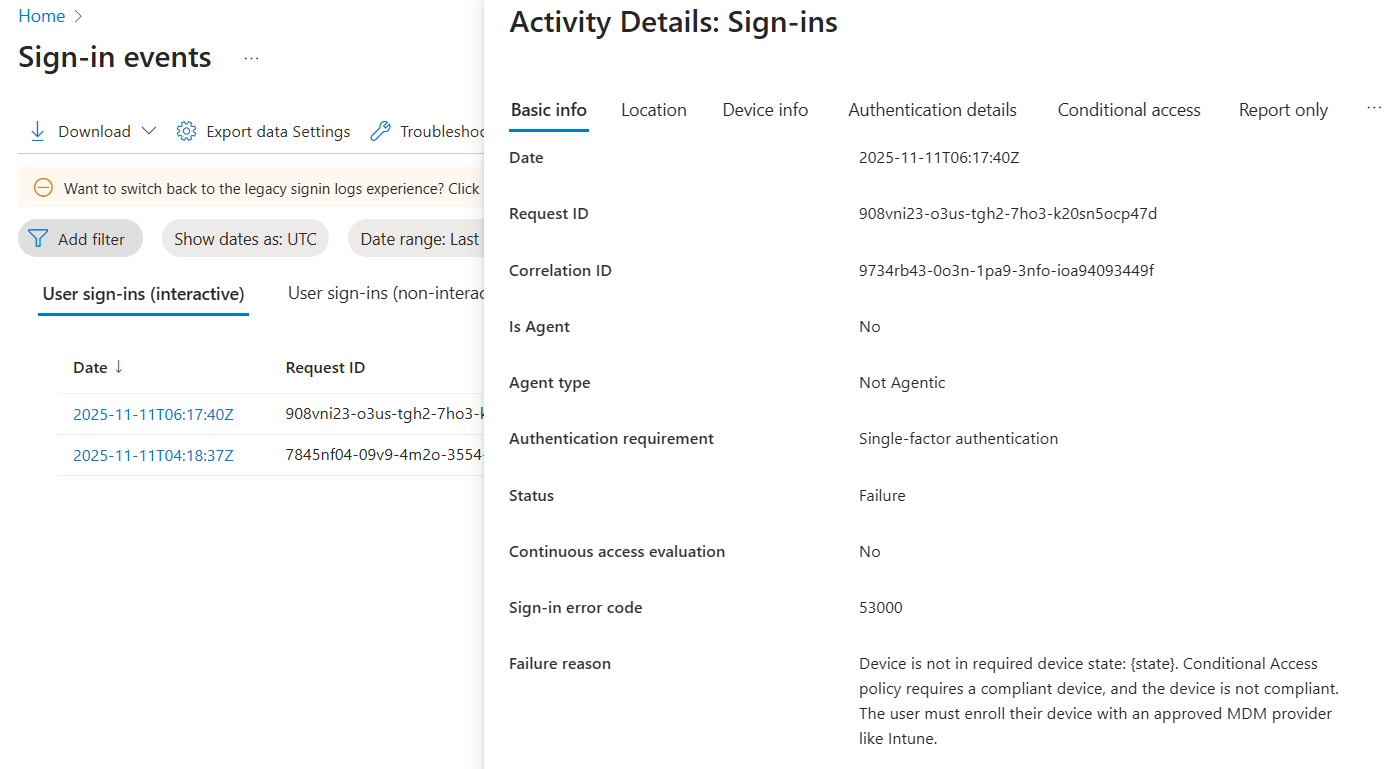
This error usually occurs due to your organization's device compliance policy. Identify and review the non-compliant device triggering error 53000 to determine the cause of non-compliance. If the device is unauthorized, ask the user who tried to sign in with the device to take further action.
If it's a known device and you want to allow the user to sign in with it, follow the steps below to resolve the issue.
Device enrollment in Microsoft Intune
Mark devices as compliant in Microsoft 365
To mark a trusted user's device as compliant, ensure it is enrolled in your organization's tenant. If the device is already enrolled, verify its compliance status and take further actions to mark the device as compliant.
If it is not enrolled, instruct the user to register it using one of the methods below.
Enroll a device in Microsoft Intune using account settings
Register a device using the company portal
Registering the device in Intune allows the admin to mark the device as compliant and enables users to pass the Conditional Access policy successfully. Follow the steps below to enroll Windows 10 devices (version 1511 and earlier) in MDM.
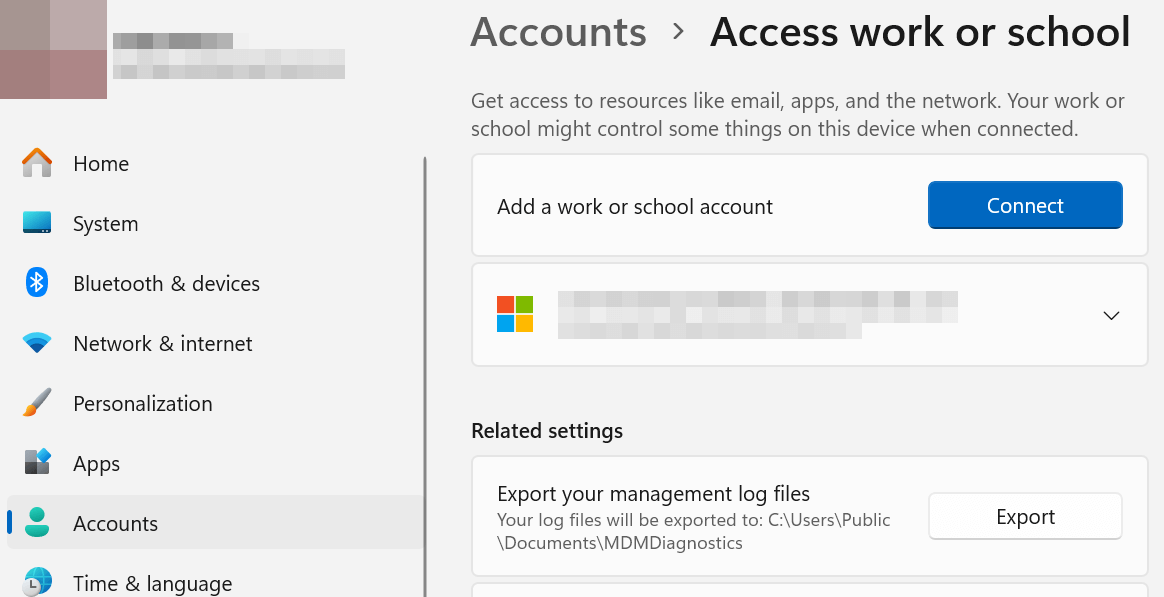
Open Settings, select Accounts, and click Access work or school.
Select Connect, then enter your email address and select Next.
Enter your password and select Sign in.
It may take some time for your device to enroll in Microsoft MDM. If it doesn’t connect after a while, click Info and select Sync.
The Intune Company Portal in Microsoft 365 is a centralized platform that allows users to securely access organizational resources, apps, and services while also managing their device compliance and security settings.
Use the following steps to register Windows 10 (version 1607 and later) and 11 in Intune.
Install and open the Company Portal app from the Microsoft Store.
Sign in to the Company Portal website using your account.
Navigate to the Home screen and click Next under Set up your device.
Click Connect and sign in with your account again.
After signing in successfully, hit Next at the bottom of the page and click Done.

For Windows 1607 & later and Windows 11, go to the Company Portal app » Settings » Sync.
For Windows 1511 & earlier, go to Settings » Accounts » [Your account] » Info » Sync.
Once a device is enrolled, administrators must ensure it is recognized as compliant within the organization. Compliance policies in Microsoft Intune define the rules and conditions that determine the compliance status of a device. A device is considered as compliant only if it meets all the conditions specified in the assigned policies.
Follow the steps below to verify and configure the compliance status of the device.
Find the compliance status of the device in Microsoft Intune
Identify and configure the compliance policies assigned to a device
Sign in to the Microsoft Intune admin center and navigate to Devices » All devices.
Here, all the enrolled devices will be listed. Locate the device and check its compliance status under the Compliance column.
If the status is Compliant, the device meets all assigned policy requirements and should pass Conditional Access (CA) policies.
If the status is Not Compliant, proceed to the next step to investigate and resolve the issue.
Navigate to Compliance policies under Devices in the Intune admin center.
Click Add filters, select Platform or OS, and choose the device’s platform.
Click Apply to filter policies specific to the selected platform.
Select the relevant policy and go to the Properties tab to review compliance requirements.
Check for any unmet conditions that may prevent the device from being marked as compliant. If any issues are found, make the necessary adjustments, such as updating the compliance policy or adjusting the device configurations to meet all specified requirements.
Once all conditions are met, the device will automatically be marked as compliant. After marking the device as compliant, you can ask the user to try sign-in again using that device.
If the user is trying to access M365 services using Chrome, ask them to try using Edge or install the Microsoft Single Sign-On extension for Chrome.
If you don’t want the compliance policy to affect certain users regardless of the device, you can exclude the user from the device compliance Conditional Access policy.

If these solutions don’t resolve your issue, let us know in the ‘Discussion section’ below. We’ll assist you to the best of our ability. However, if none of the solutions worked, you may need to contact Microsoft Support for additional help.