Fix Sign-in Error Code AADSTS500121
Authentication failed during strong authentication request
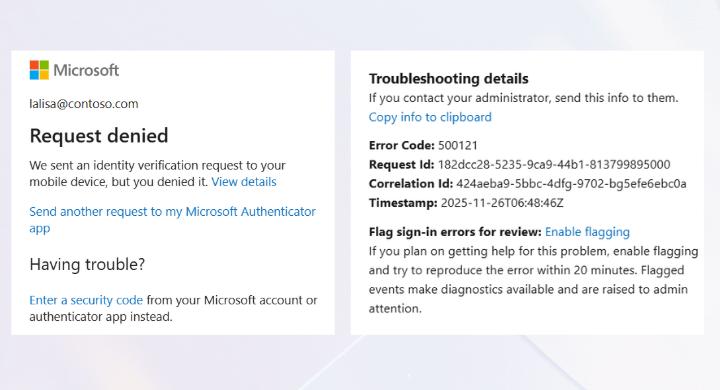


We didn’t hear from you. We sent an identity verification request to your Microsoft Authenticator app, but we didn’t hear from you in time.
This error can occur for several reasons, such as:
The user did not complete the MFA prompt.
The user accidentally selected “No, it’s not me” during verification.
The session timed out while the user was multitasking.
Issues with the user’s authentication setup, such as configuration errors, outdated versions, or connectivity problems.
When a user’s sign-in is blocked due to an MFA failure, admins can analyze the failure causes using Microsoft 365 sign-in activity reports.
License Requirement
Microsoft Entra ID P1 license
Role Requirement
Report Reader
Sign in to the Microsoft Entra admin center.
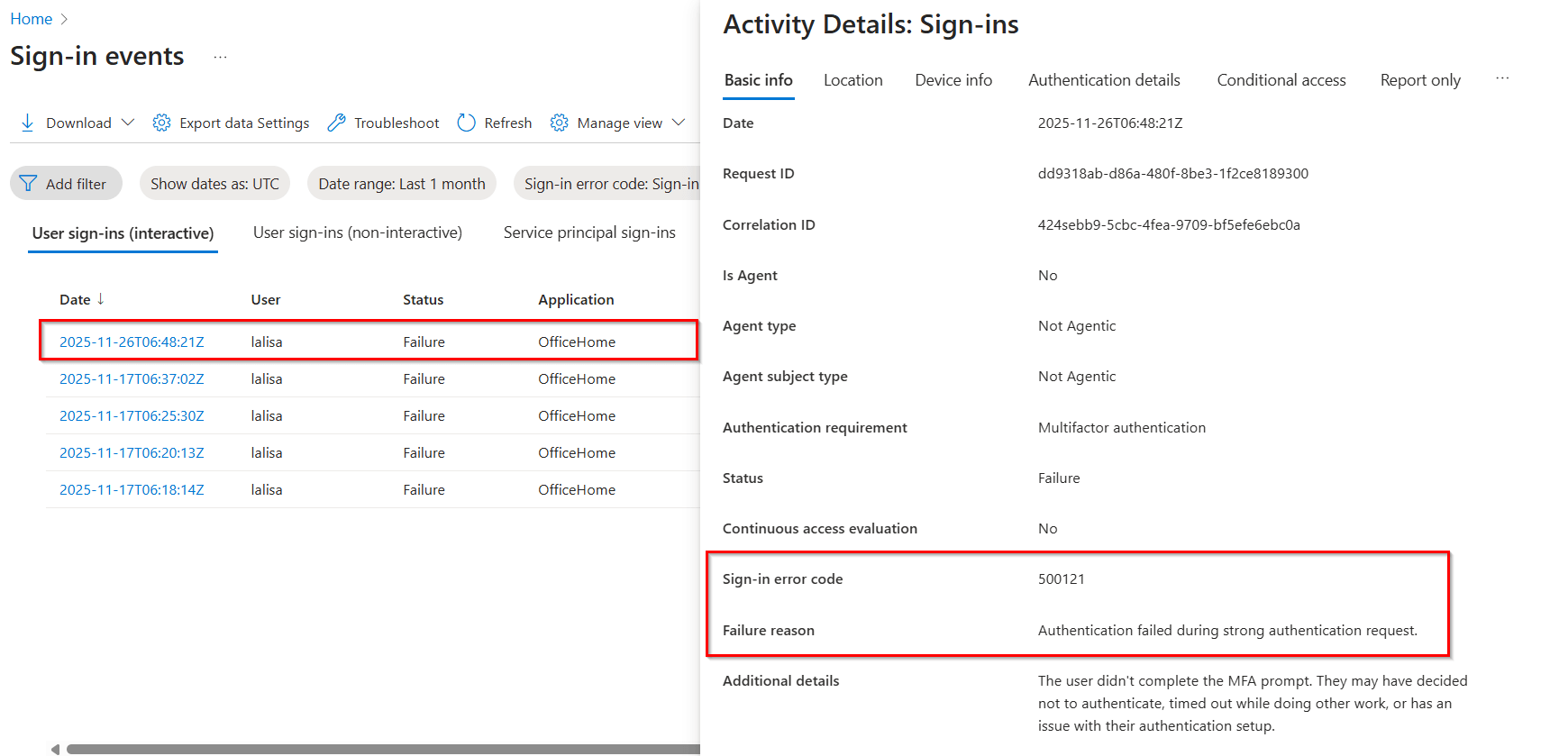
Go to the Entra ID » Monitoring & health » Sign-in logs.
Apply the following filters to find and analyze Microsoft 365 sign-ins that were blocked because of MFA failures.
Sign-in error code: 500121
Username: Enter the affected user’s UPN.
Date: By default, this filter is set to show sign-in activity for the past 24 hours, but you can customize the date range to include up to 7 or 30 days.
You can further narrow your search using additional filters, such as correlation ID, request ID, and other user-specific details in Microsoft Entra ID.
Administrators can resolve sign-ins blocked by strong authentication using the following solutions methods.
Unblock user account in the Microsoft 365 admin center
Enable user account in the Microsoft entra admin center
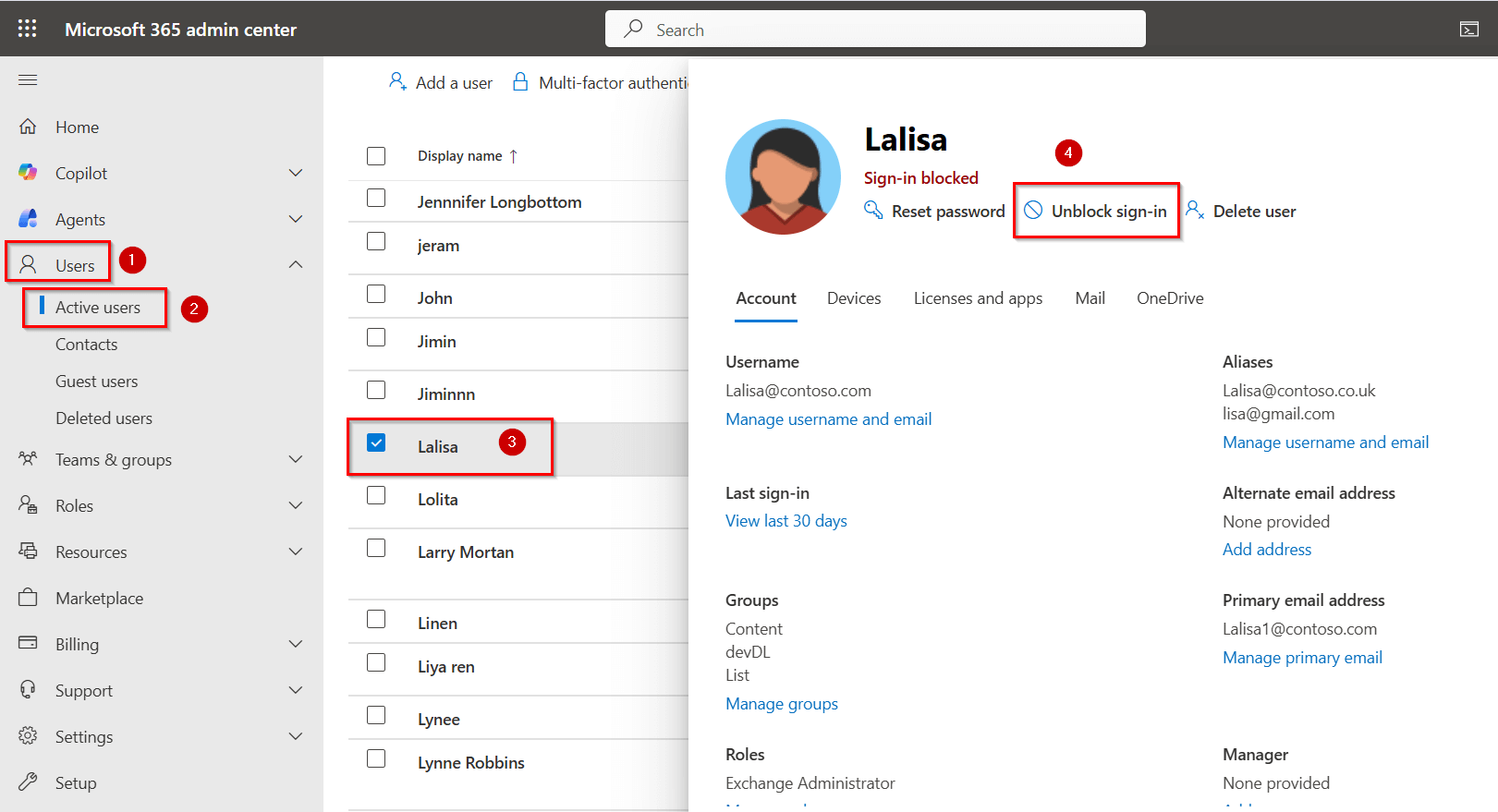
Sign in to the Microsoft 365 admin center.
Navigate to Users » Active users and select the affected Microsoft 365 user account.
Click Unblock sign-in, uncheck Block this user from signing in, and save changes.
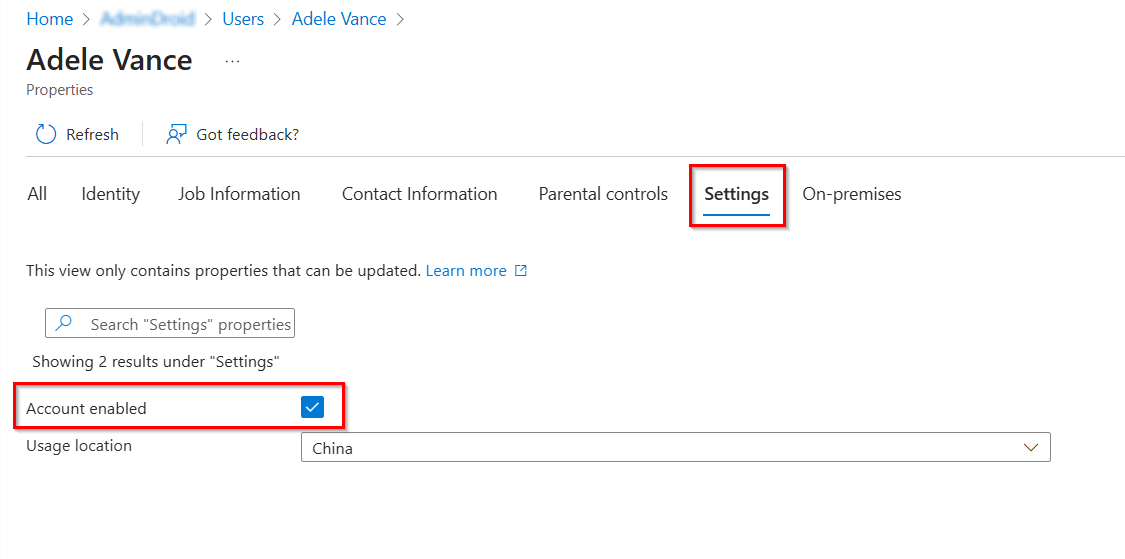
Open the Microsoft Entra admin center and go to Entra ID » Users » All users.
Select the user you want to enable and click Edit properties.
Go to the Settings tab and check the Account enabled box to activate the user account.
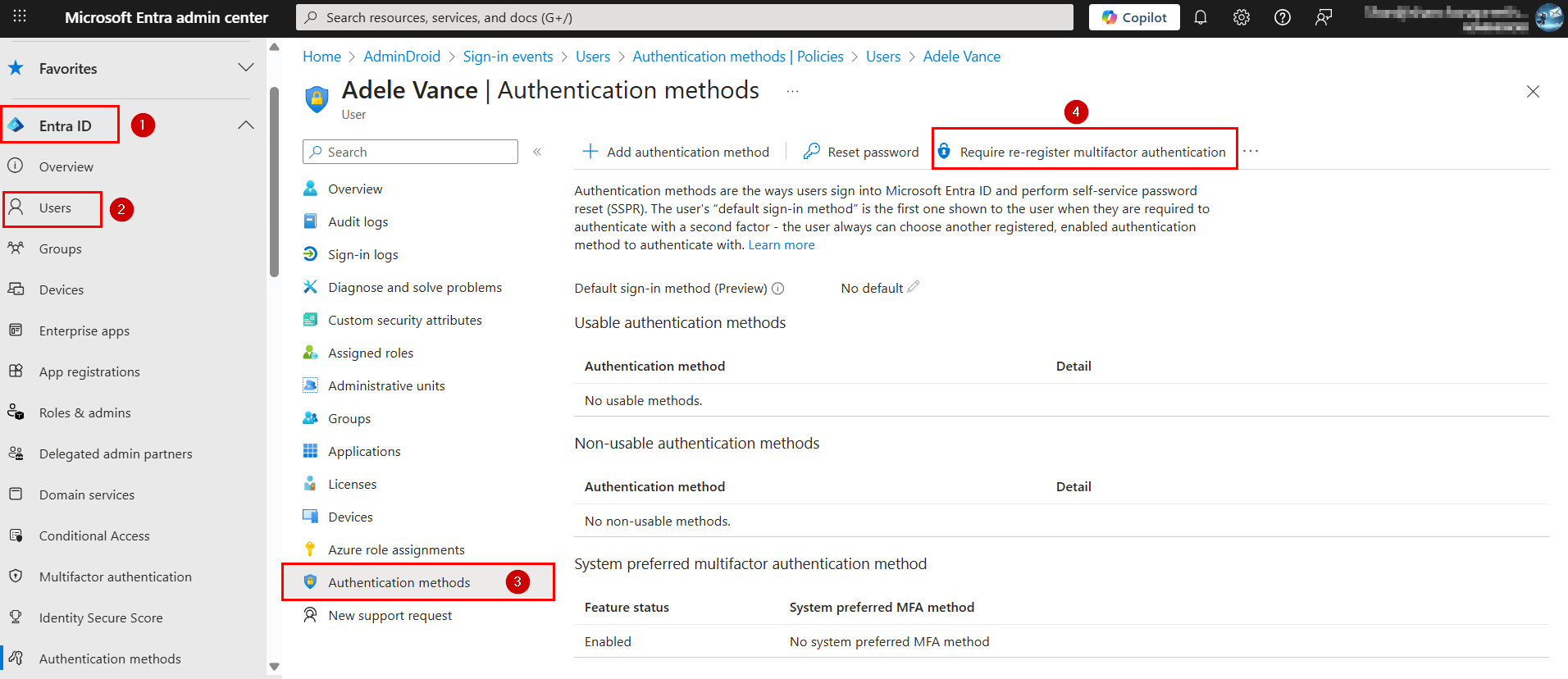
Sign in to the Microsoft Entra admin center.
Navigate to the Entra ID » Users » All users.
Select the affected user and then choose Authentication methods from the left pane.
Click Require re-register multifactor authentication to reset the user's MFA.
As a Microsoft 365 user, you can address the strong authentication failed issues using these preliminary steps:
Clear Browser Cache and Cookies: Clear your browser’s cache and cookies, then try signing in again to resolve potential browser-related problems.
Set Up Alternative MFA Methods: If the Authenticator app isn’t working, switch to an alternative MFA method, such as SMS codes or hardware tokens.
Update or reinstall related apps: Ensure your browser and other related applications are up to date. If the issue persists, uninstall and reinstall the affected app to fix potential compatibility or configuration issues.
If the issue continues after these steps, contact your system administrator for further assistance.

If these solutions don’t resolve your issue, share your concerns in the 'Discussion forum', and we’ll assist to the best of our ability. However, if none of the solutions work, you may need to contact Microsoft Support for further assistance.