Fix Sign-in Error Code AADSTS7000112
AADSTS7000112: Application 'AppID' (AppName) is disabled.



AADSTS7000112: Application '1fec8e78-bce4-6aaf-ab1b-5451cc387264'(Microsoft Teams) is disabled.
The error occurs when users attempt to access an application that has been blocked from sign-in within the Microsoft 365 tenant.
When a user tries to access a blocked Entra app, admins can review the sign-in logs to investigate the error.
License Requirement
Microsoft Entra ID P1 license
Role Requirement
Report Reader
Sign-in to the Microsoft Entra admin center.
Navigate to the Entra ID » Monitoring & health » Sign-in logs.
Apply the following filters to locate sign-ins related to disabled apps in Microsoft 365.
Sign-in error code: 7000112
Username: <Enter the user’s UPN>
Date: By default, this filter is preset to the past 24 hours, but it can be customized to the past 7 days or 1 month as needed.
You can view the details of the disabled app here. Additionally, you can customize fields and apply filters to display only the most relevant sign-in activities.
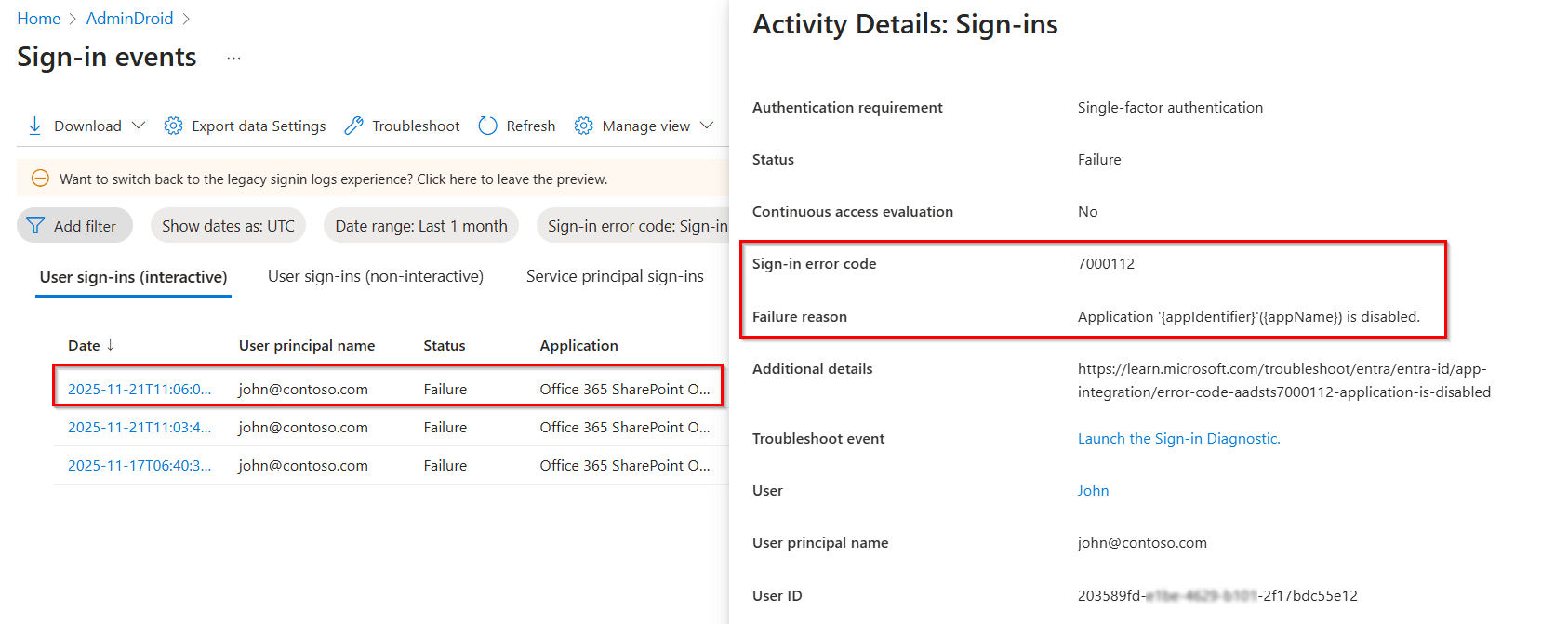
If the application was unintentionally disabled, admins can re-enable it using any one of the following methods.
Enable app access using Microsoft Entra admin center
Enable app for users to sign-in with Microsoft Graph PowerShell
Open the Microsoft Entra admin center and go to Entra ID » Enterprise apps.
Use the Application type filter and set it to All applications.
Search for the required Entra ID application and select it.
In the selected application, navigate to the Properties section under the Manage menu.
Locate the ‘Enabled app for users sign-in?’ option and toggle it to Yes.
Click Save to apply the changes and enable the Entra ID application in Microsoft 365.
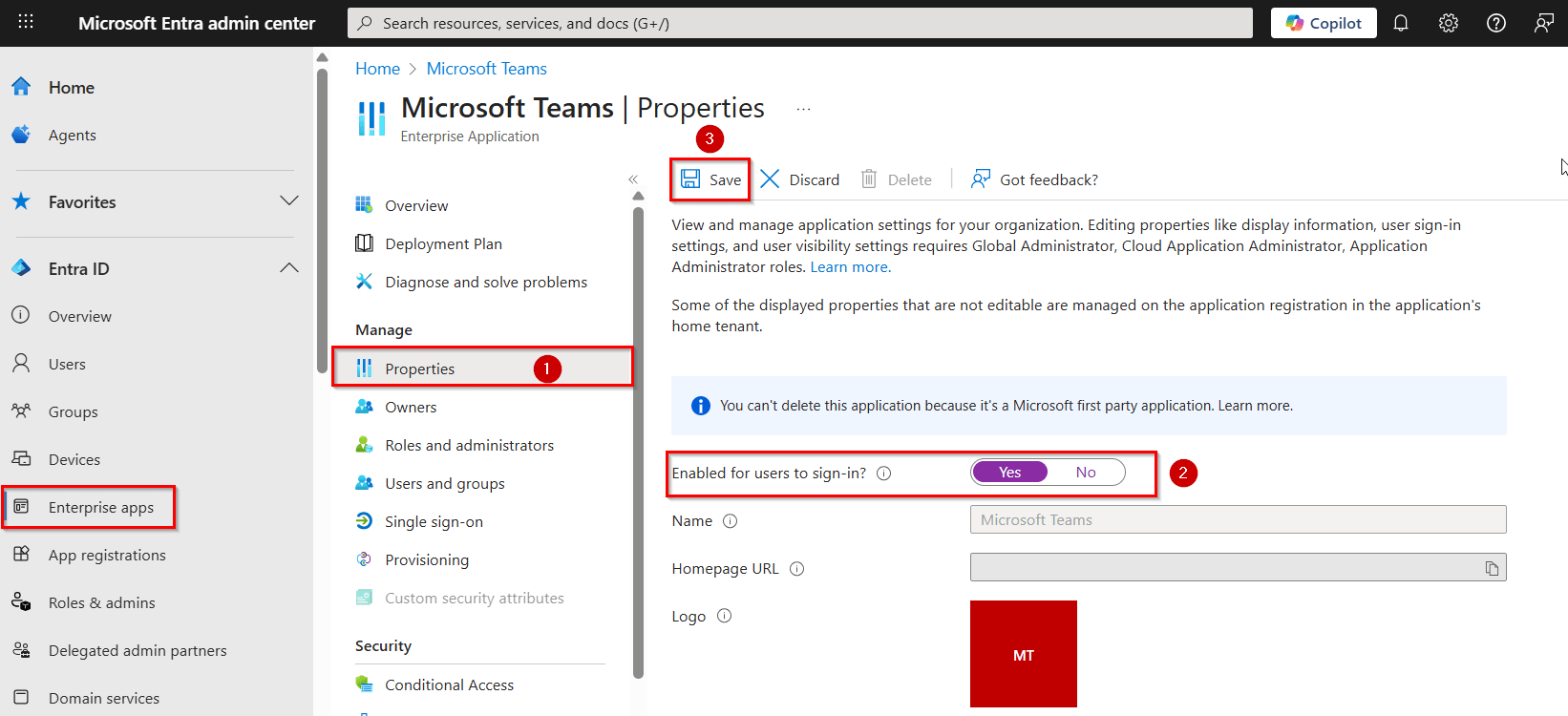

Microsoft automatically provisions and manages service principals for first-party apps. Tenant admins should not manually enable them when disabled, and no action is required if Microsoft has intentionally disabled them.
Follow these steps to enable the service principal object in Microsoft 365 using PowerShell.
Connect to the Microsoft Graph PowerShell by running the following command.
 Windows PowerShell
Connect-MgGraph
Use the Update-MgServicePrincipal cmdlet to enable the specific application by setting the -AccountEnabled parameter to $true.
Windows PowerShell
Update-MgServicePrincipal -ServicePrincipalId '<ObjectId>' -AppId '<AppId>' -AccountEnabled:$true

We’re here to help! If these solutions don’t resolve your issue, share your concerns in the discussion forum, and we’ll assist to the best of our ability. However, if none of the solutions work, you may need to contact Microsoft Support for further assistance.