Resolve 554 5.2.2 Mailbox Full Error
The recipient's mailbox is full and can't accept messages now. Please try resending this message later or contact the recipient directly.
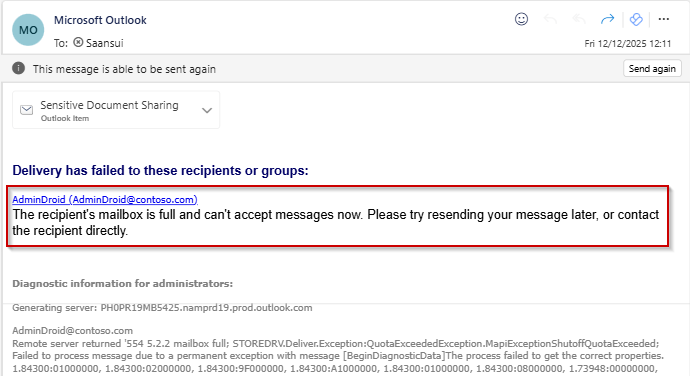


The recipient's mailbox is full and can't accept messages now. Please try resending this message later or contact the recipient directly.
Diagnostic information for administrators Remote Server returned '554 5.2.2 mailbox full; STOREDRV.Deliver.Exception:QuotaExceededException.MapiExceptionQuotaExceeded'
This 554 5.2.2 NDR indicates that the destination mailbox has reached its storage quota and cannot accept new messages. When it occurs with a mail-enabled public folder, reasons would be any of the below:
The public folder mailbox hosting that folder has reached its size limit.
Quota settings for the public folder mailbox are too restrictive.
Retention or auto-expansion isn’t configured, so messages keep filling the mailbox.
Admins can fix the NDR 554 5.2.2 “mailbox full” error by increasing the mailbox’s quota. However, since the Exchange admin center cannot increase public folder mailbox quotas, admins have to use Exchange Online PowerShell to increase the storage limit.
Connect to Exchange Online PowerShell.
Run the following cmdlet to increase the mailbox storage quota:
 Windows PowerShell
Set-Mailbox -PublicFolder -ProhibitSendReceiveQuota -ProhibitSendQuota -IssueWarningQuota
Replace <MailboxName> with the actual public folder mailbox name.
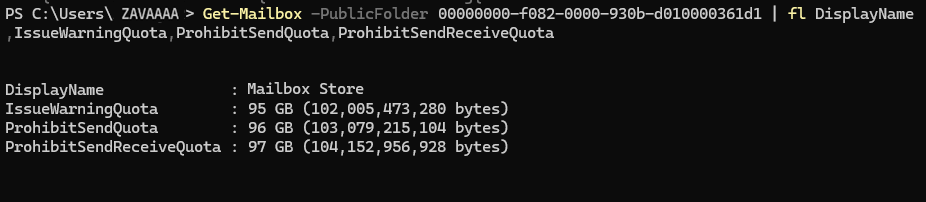
Verify whether quota has been increased to the public folder mailbox with the following cmdlet:
Windows PowerShell
Get-Mailbox -PublicFolder | fl DisplayName,IssueWarningQuota,ProhibitSendQuota,ProhibitSendReceiveQuota
Note: Public folders are often legacy features. If heavily used for mail flow, consider migrating to shared mailboxes or Microsoft 365 Groups for better scalability.
Use Multiple Public Folder Mailboxes in Exchange Online
If a public folder mailbox is nearing capacity, create additional ones.
Assign public folder hierarchy across multiple mailboxes to balance the email load. Run:
Windows PowerShell
New-Mailbox -PublicFolder -Name "PFMailbox2"
Then move or create new folders in the new public folder mailbox.
Configure Retention or Archiving for an Exchange Mailbox
Apply retention policies to public folders to auto-delete older items.
Consider moving historical data to an archive mailbox.
This reduces the chance of hitting quotas again.
Delete unnecessary emails: Review your inbox, sent items, and other folders to remove old and unwanted emails, especially those with large attachments.
Empty the Deleted Items and Spam folders: Messages in these folders still consume storage. Clearing them helps free up mailbox space.
Archive older emails: Use your Outlook’s archiving feature to move older messages out of your primary mailbox while keeping them accessible when needed.
Check your total storage usage: Open your Outlook's storage settings to view your current usage and identify which folders are using the most space.
Review the “Recoverable Items” folder: If your mailbox appears empty but you still can’t delete items, the Recoverable Items folder might be full. This folder requires admin access and PowerShell to manage, so you’ll need to contact your IT administrator for assistance.

If these solutions don't resolve your issue, feel free to leave a comment in the below 'Discussion section'. We'll assist you to the best of our ability. However, if none of the solutions worked, you may need to contact Microsoft Support for additional help.