How to Fix Sign-in Error Code AADSTS50074
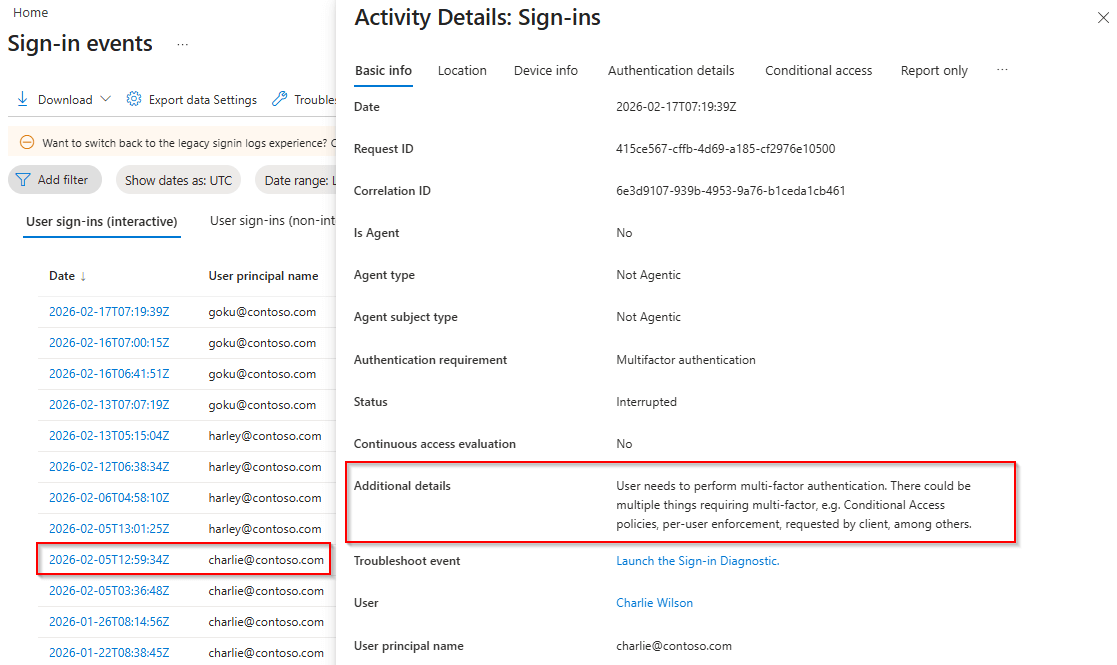
User needs to perform multi-factor authentication.
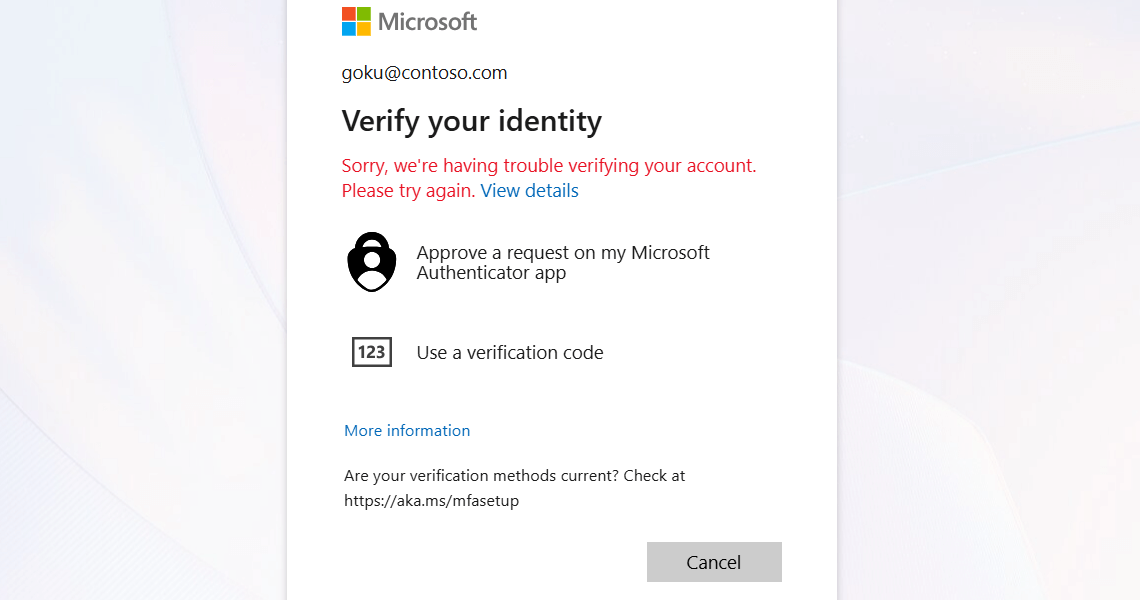


Sorry, we’re having trouble verifying your account. Please try again.
Users will encounter this sign-in error if they do not respond to MFA challenges and the MFA does not complete within the expected time window. This can occur for several reasons, such as:
Verification code not received by users due to an inaccessible phone number or email.
Network issues block the authentication code from reaching the user.
Replacement or loss of the user’s registered MFA device.
When a user does not complete MFA authentication within the expected time, admins can observe sign-in error code 50074 in the Microsoft Entra ID sign-in activity reports.
License Requirement
Microsoft Entra ID P1 license
Role Requirement
Reports Reader
Log in to the Microsoft Entra admin center.
Navigate to Sign-in logs under Protection » Conditional Access » Monitoring.
To locate MFA Interrupted sign-ins for a user, apply the following filters:
Sign-in error code = '50074'
Username = Enter the affected user’s UPN.
Date range = By default, this filter is set to show sign-in activity from the past 24 hours, but You can customize the time interval for up to 30 days.
After applying the filters, click on the sign-in events for the specific time range. Navigate to the Authentication details tab to review and understand when the access was interrupted.
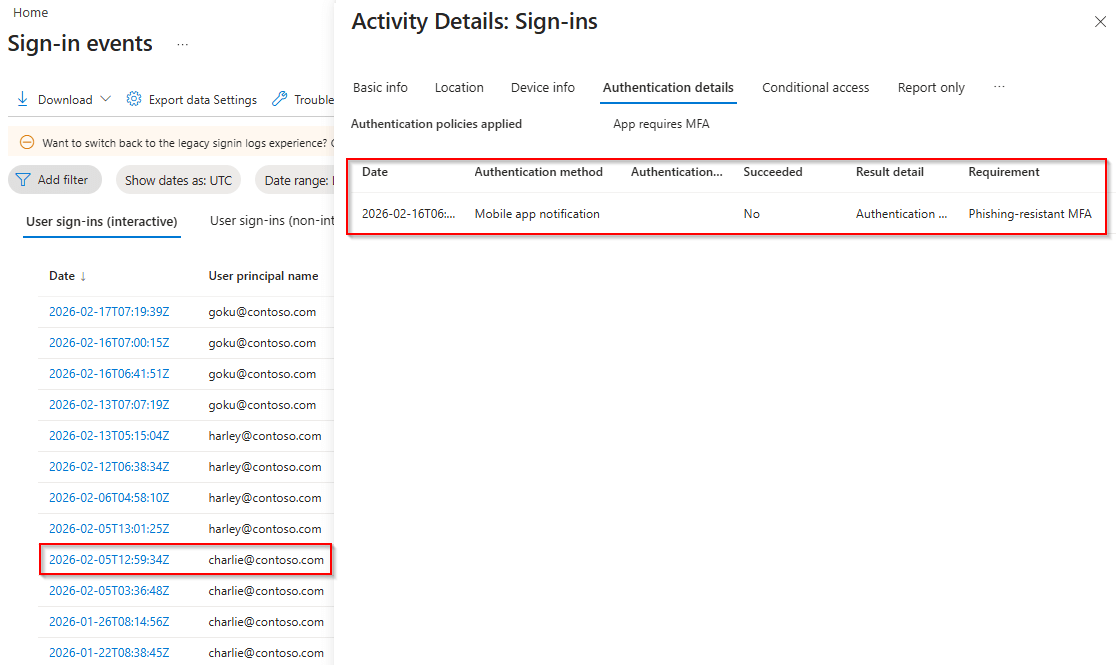
Note: Even though it is logged as 50074 in Entra sign-in logs, users will see sign-in error 50121 when they fail to pass the MFA challenge.
To resolve the issue and restore user access to Microsoft 365, you can use any one of the following methods.
Reconfigure MFA for a Microsoft365 User Using Entra ID
Reset MFA for a M365 User Using a PowerShell Script
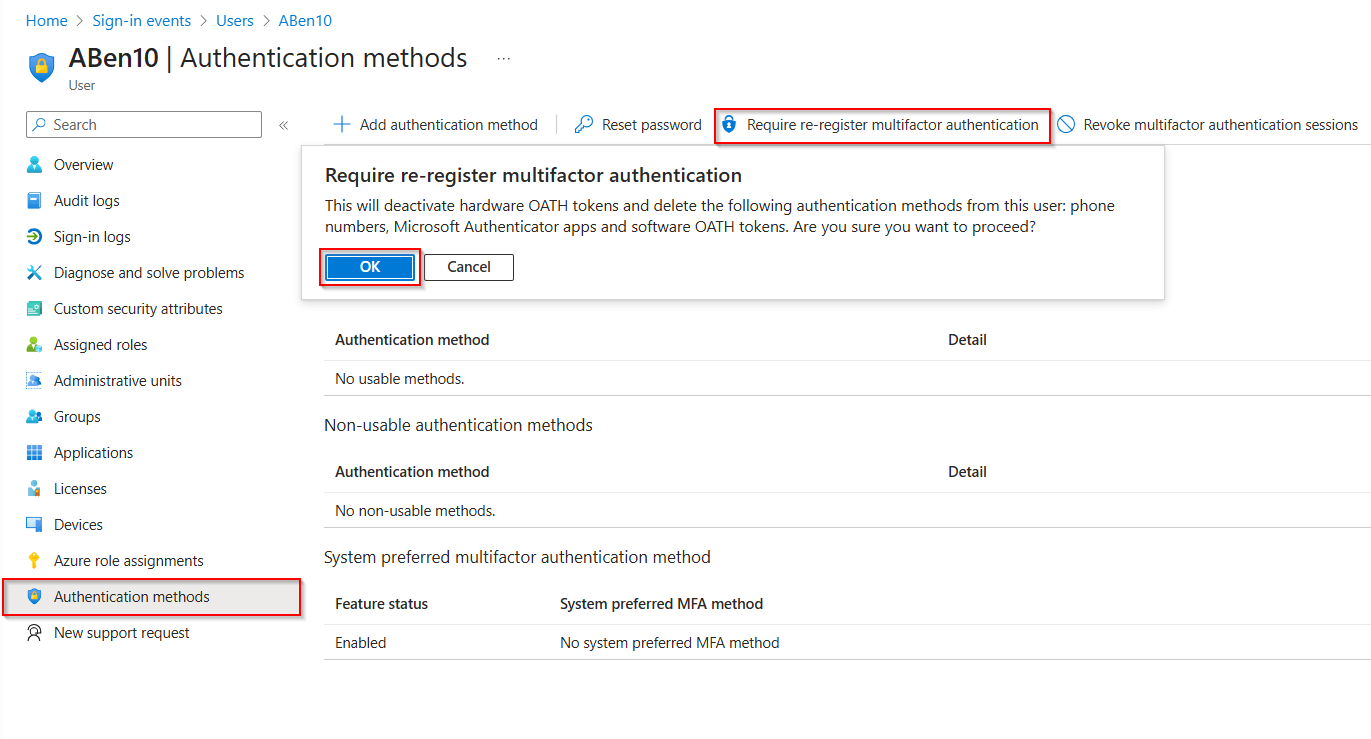
Open the Microsoft Entra admin center and navigate to Entra ID » Users » All users.
Select the user for whom you want to reset MFA.
In the user’s profile, go to Authentication methods, and on the top menu bar, click the Require re-register multifactor authentication option.
When the confirmation dialog appears, click OK to confirm and prompt the user to reset their MFA registration.
1. First, download the ResetMFAMethods.ps1 PowerShell script.
2. Then, run the below cmdlet after replacing <UserPrincipalName> with the user principal name of the respective user.
 Windows PowerShell
.\ResetMFAMethods.ps1 –UserId <UserPrincipalName>>
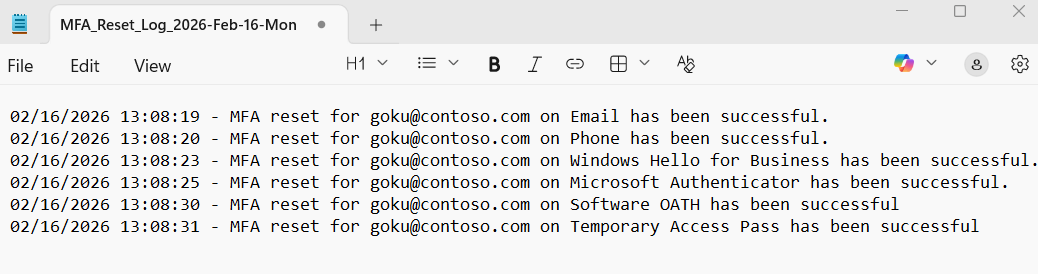
3. The executed script will remove all authentication methods for the specified user and export the details as a log file.
4. Furthermore, if you want to verify authentication methods for a specific user, use the below cmdlet. You can then remove the respective authentication method via the Microsoft Entra admin center or the appropriate PowerShell cmdlets.
Windows PowerShell
Get-MgUserAuthenticationMethod -UserId <UserPrincipalName> | Select-Object Id, @{Name="MethodType"; Expression={$_.AdditionalProperties["@odata.type"].Replace("#microsoft.graph.", "")}}

Tip: Instead of resetting all authentication methods, provide a Temporary Access Pass when users lose their MFA device. This allows them to temporarily access Microsoft 365 services and onboard new authentication methods securely.
As a Microsoft 365 user, you may encounter this error if the MFA challenge was not completed within the required time window. To resolve this, you can use the following preliminary steps.
Sign in again and complete MFA promptly: If you accidentally ignored the MFA prompt, close the current page, sign in again, and ensure you respond to the MFA prompt without delay.
Verify your authentication method: Confirm that your registered MFA method, such as the Authenticator app, phone call, or SMS, is accessible.
Check network connectivity: Ensure you have a stable internet connection before retrying the sign-in process.
Re-register MFA methods: If your MFA device is lost, inform your administrator to reset your MFA methods, then register a new authentication method to regain access.

If these solutions don't resolve your issue, feel free to leave a comment in the below 'Discussion section'. We'll assist you to the best of our ability. However, if none of the solutions worked, you may need to contact Microsoft Support for additional help.