Fix Sign-in Error Code AADSTS50057
User Account is Disabled
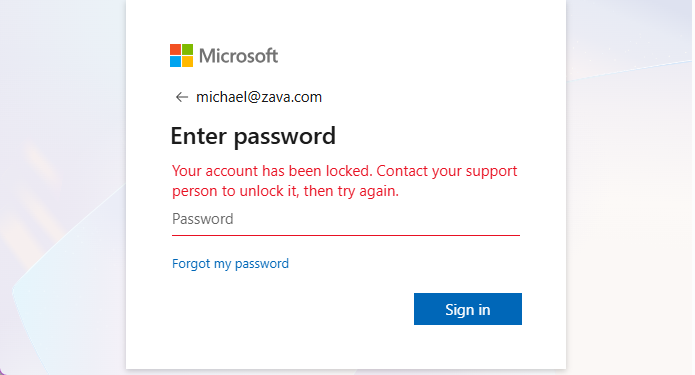


Your account has been locked. Contact your support person to unlock it, then try again.
User will encounter this sign-in error if their account has been disabled. Below are the possible causes for the 50057 error:
Users may be intentionally blocked if their account is suspected of being compromised.
A user account may be temporarily disabled by Entra ID smart lockout due to security concerns, such as multiple unsuccessful sign-in attempts or unusual login activity.
Former employees get this error when they try to signin because their accounts were disabled during Microsoft 365 offboarding.
Rarely, admins might accidentally block a user's account while attempting to disable inactive users in bulk.
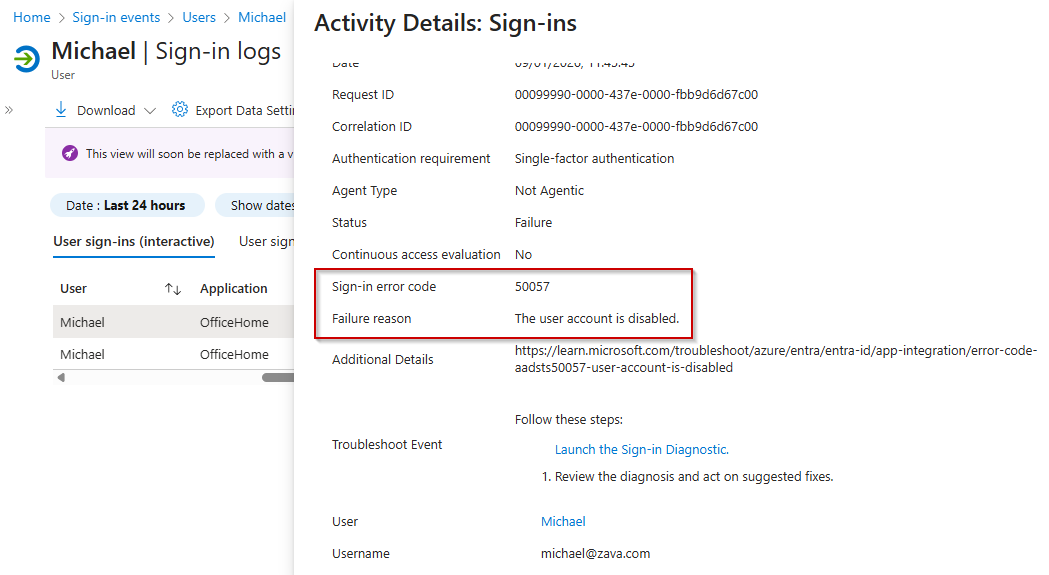
When a user account is blocked, M365 admins can observe the sign-in error code AADSTS50057 in the Microsoft Entra ID sign-in activity reports.
License Requirement
Microsoft Entra ID P1 License
Role Requirement
Reports Reader
Admins can investigate the reason for the error by following the steps below.
Log in to the Microsoft Entra admin center.
Navigate to the Sign-in logs under Monitoring & health.
Apply the following filters to locate relevant sign-ins related to disabled accounts:
Sign-in error code: '50057'
Username: <Enter the UPN>
Date: It is a default filter and auto-applied
You can customize the fields further and filter the reports to show only the relevant activities, as seen in the screenshot.
If the Microsoft 365 account wasn't disabled due to security measures (e.g., suspicious login activity or compromised account), you can re-enable it using any of the methods below.
Fix error AADSTS50057 using the Microsoft 365 admin center
Fix the 50057 sign-in error code using PowerShell
Solve error code 50057 using the Microsoft Entra admin center
Sign in to the Microsoft 365 admin center.
Under Users, select Active users.
Locate the desired user, and then click the user’s display name to open the settings pane.
At the top of the pane, select Unblock sign-in.
In the Unblock sign-in screen, de-select “Block this user from signing in” and click Save changes.
Note: It may take up to 15 minutes for the user to regain access.
Follow the steps below to re-enable a Microsoft 365 user using Graph PowerShell:
Download and connect to Microsoft Graph PowerShell as an administrator using the below cmdlet in Windows PowerShell.
 Windows PowerShell
Connect-MgGraph
Then, execute the following cmdlet to unblock the Microsoft 365 user.
Windows PowerShell
Update-MgUser -UserId ‘user@domain.com’ -AccountEnabled $true
Admins can also enable a user account via Microsoft Entra ID using the steps below.
Log in to the Microsoft Entra admin center.
Under Identity » Users, select All users.
Locate the desired user and click their display name to view detailed information.
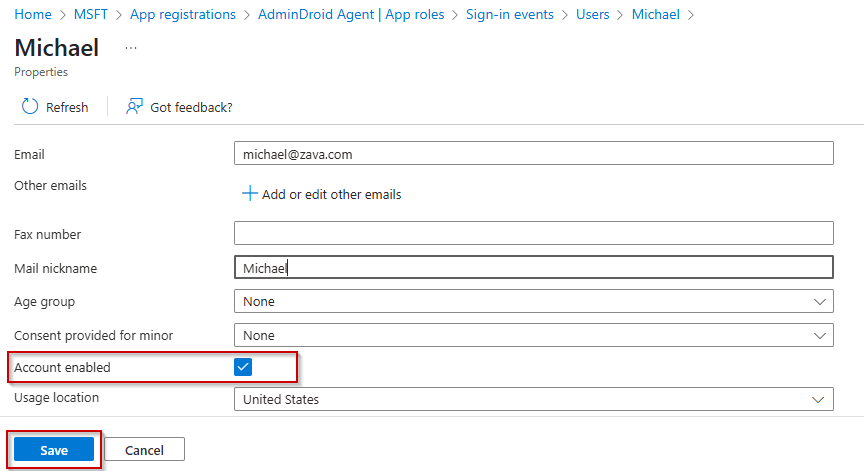
Click the ‘Edit properties’ in the top left corner of the page.
Scroll down and check the ‘Account enabled’ property as shown in the screenshot below.
Then, Save the changes to unlock a user account in Microsoft 365.

If these solutions don’t resolve your issue, feel free to leave a comment in the below ‘Discussion section’. We’ll assist you to the best of our ability. However, if none of the solutions worked, you may need to contact Microsoft Support for additional help.