Fix Sign-in Error Code AADSTS53011
User blocked due to risk on home tenant
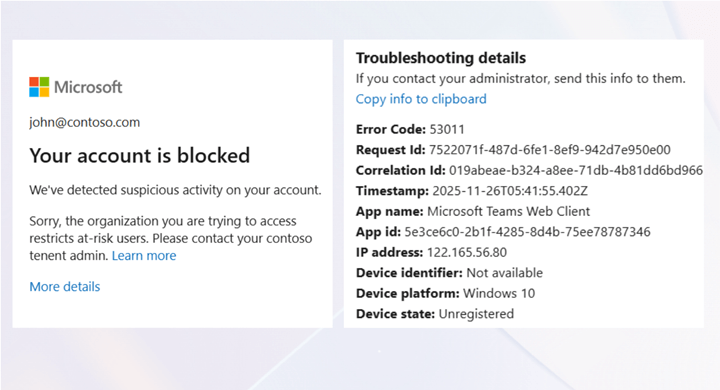


Your account is blocked. We’ve detected suspicious activity on your account. Sorry the organization you are trying to access restricts at risk-users. Please contact your tenant admin.
This error occurs when Microsoft 365 detects a user as risky and blocks the sign-in.
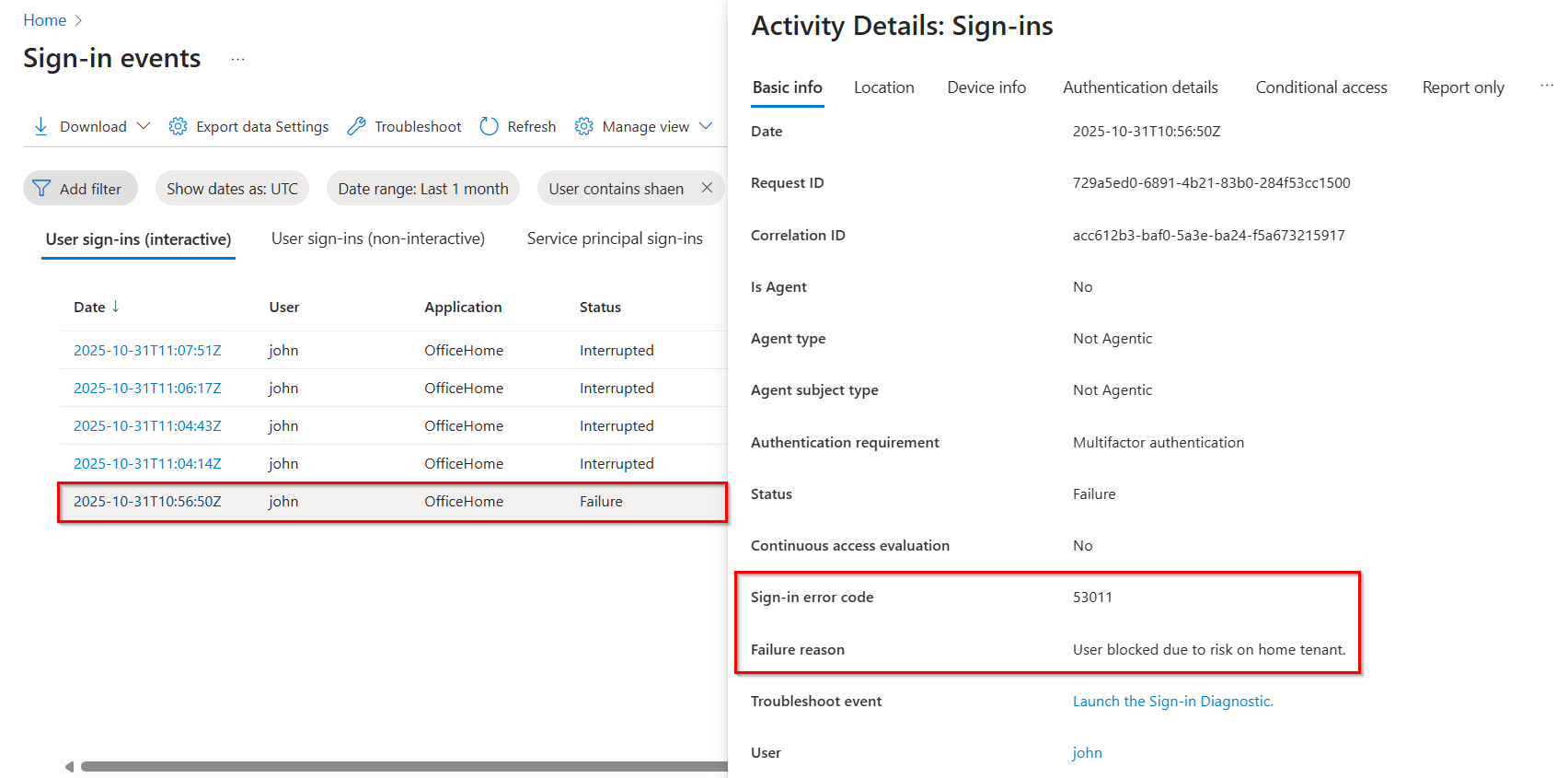
When Microsoft 365 blocks a risky user's sign-in, admins can analyze the sign-in failure through the Microsoft 365 sign-in activity logs.
License Requirement
Microsoft Entra ID P1 license
Role Requirement
Report Reader
Log in to the Microsoft Entra admin center.
Navigate to the Entra ID » Monitoring & health » Sign-in logs.
Use the following filters to identify the specific failed sign-in attempt of a risky user.
Sign-in error code: 53011
Username: Enter the user’s UPN.
Date: By default, this filter is set to show sign-in activity for the past 24 hours. You can also customize it to the past 7 days or 1 month as needed.
You can also customize fields and apply additional filters to refine the report and display only relevant sign-in events.
To resolve the sign-in error caused by a user's risk state, you can choose from the following remediation options:
Manually reset the user's password in Microsoft 365
Dismiss the user risk manually in Entra ID
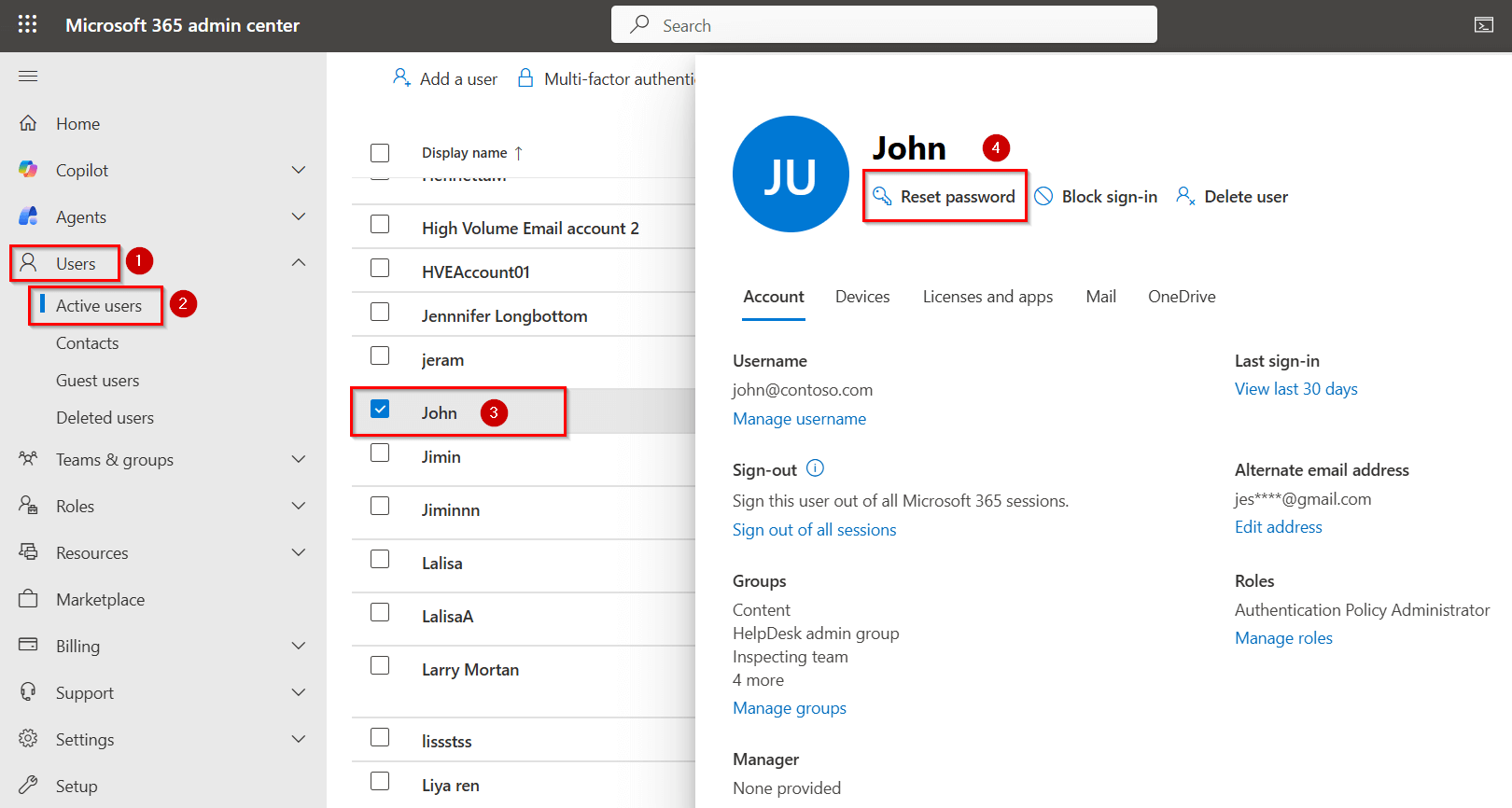
To resolve a user risk state, you can manually reset the user password in the Microsoft 365 admin center and generate a temporary password.
Log in to the Microsoft 365 admin center.
Navigate to Users » Active users.
Select the risky user blocked by Microsoft 365 and click Reset password.
Choose the Automatically create a password option to generate a temporary password.
You must also select Require this user to change their password when they first sign-in option to ensure users change their password.
Securely email the generated temporary password with the user.
If SSPR isn’t available or the user isn’t registered, this method comes in handy to help them regain access.

If the risky user account is compromised, promptly secure the Microsoft 365 account to mitigate potential risks or unauthorized activities.
First investigate the risk, and if the user is confirmed to be legitimate, you can dismiss the user’s risk status.
Sign in to the Microsoft Entra admin center.
Navigate to ID Protection » Risky Users.
Select the affected user and click Dismiss user risk.
In the confirmation prompt, select Yes to confirm and dismiss the user risk in Microsoft 365.
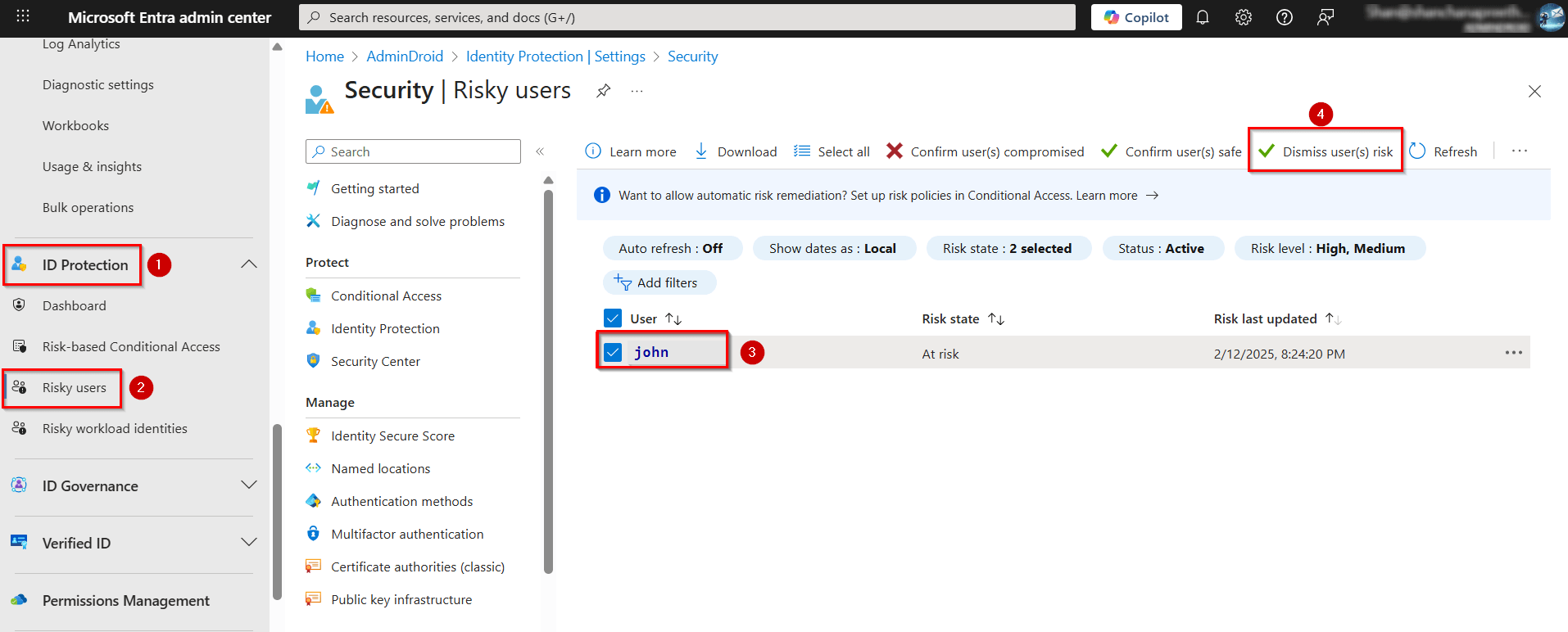
Dismissing the risk removes the user's risk status, and all associated risk detections are cleared. However, you must have at least Security Operator permissions to perform this action.

Because this method doesn’t reset the user’s existing password, their identity isn’t fully restored to a safe state. It’s recommended that you contact the user, inform them about the risk, and advise them to change their password.
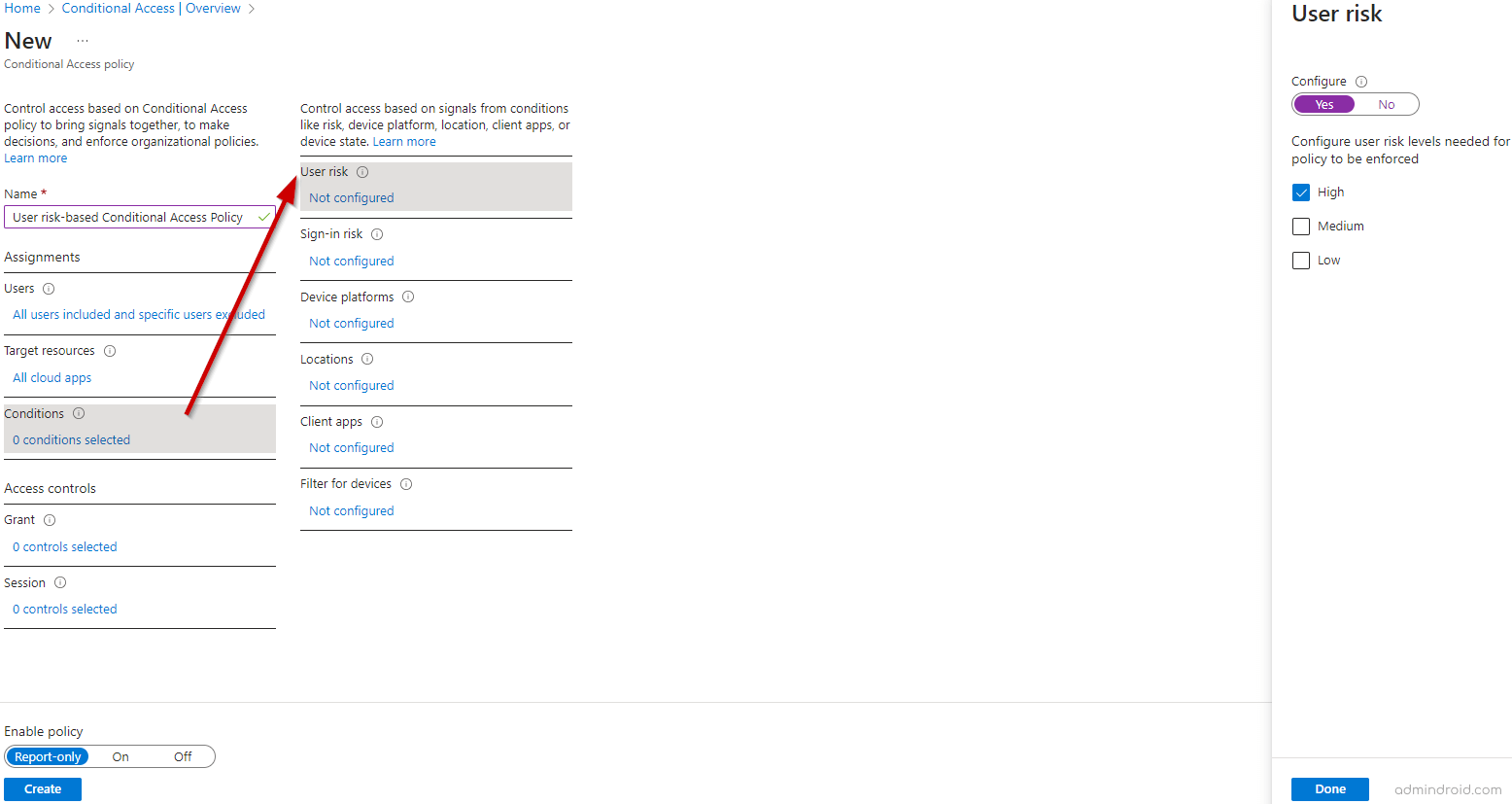
With the user risk-based CA policy, you can enforce users to complete multi-factor authentication or perform a secure password change to remediate their risk. As a result, the user’s risk state will change from At Risk to Remediated. You can create this CA policy using the steps below:
Navigate to Entra ID » Conditional Access » Create a new policy in the Microsoft Entra admin center.
Name your policy and configure the assignments and targets as needed.
Under Conditions, open User Risk, toggle Configure to Yes, and select the risk levels the policy should enforce.
In the Grant section under Access controls, select the actions you want to enforce, such as:
Require multi-factor authentication
Require password change
Configure sign-in frequency and other settings as required. Set the policy to Report-only mode for testing and click Create. After validation, you can Enable the policy.
For users to self-remediate their risk with a secure password change, they must be registered for multi-factor authentication. If a user doesn’t meet the Conditional Access policy requirements, their sign-in will be blocked. In such cases, admins should unblock the user in the Microsoft 365 admin center.
Additionally, for hybrid users synced from on-premises to the cloud, password writeback must be enabled.
As an end user, you can resolve the 53011 error using the following method.
Self-remediation using Self-service Password Reset: If you are registered for self-service password reset, you can resolve the issue by resetting your account password. Go to the Microsoft 365 Password Reset portal to complete the process.
Meet the Conditional Access requirements: When Conditional Access grant controls like MFA or password reset are required to remediate a user’s risk state, completing the required authentication method will clear the risk.
If the issue persists after performing this step, contact your system administrator for further assistance.

We’re here to help! If these solutions don’t resolve your issue, share your concerns in the discussion forum, and we’ll assist to the best of our ability. However, if none of the solutions work, you may need to contact Microsoft Support for further assistance.