Fix Sign-in Error Code AADSTS53003
Access has been blocked by Conditional Access Policies
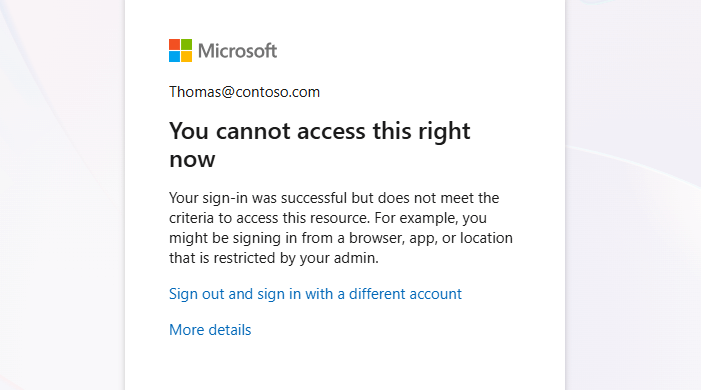


You can’t access this right now. Your sign-in was successful but does not meet the criteria to access this resource. For example, you might be signing in from a browser, app, or location that is restricted by your admin.
Entra ID Conditional Access policies define security rules around factors like location, device type, or login method. If any configured factor is not met, users will get the 53003 error.
If a user access is blocked, M365 admins can locate the sign-in error code AADSTS53003 in the Microsoft Entra ID sign-in activity reports.
License Requirement
Microsoft Entra ID P1 license
Role Requirement
Reports Reader
Admins can find detailed error information for a user's sign-in attempts in the Microsoft Entra ID sign-in activity reports by following these steps:
Log in to the Microsoft Entra admin center.
Navigate to ‘Sign-in logs’ under Protection » Conditional Access » Monitoring.
To locate failed sign-ins for a user, apply the following filters:
Sign-in error code: '53003'
Username: <Mention the UPN>
Date: <It is a default filter and auto-applied>
Conditional Access: ‘Failure’
After applying the filters, click on the failed sign-in events for the specific time range. Navigate to the Conditional Access tab to review the policy and understand why the access was blocked.
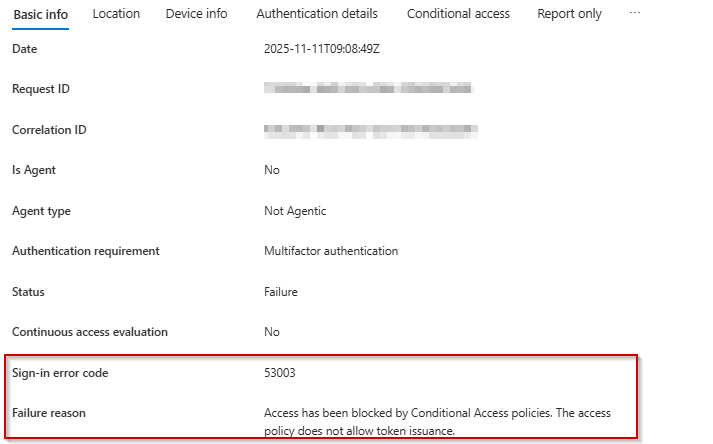
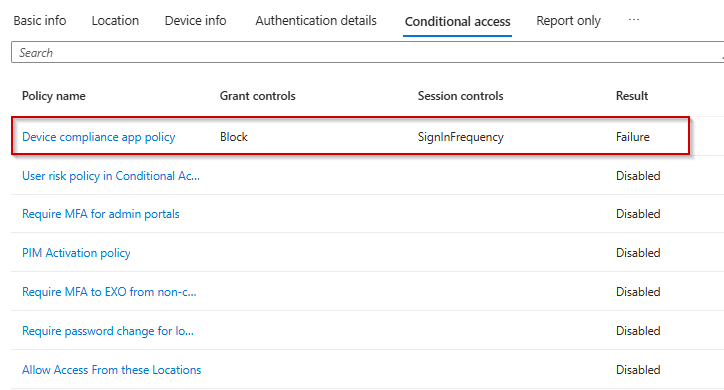
Identify the CA policy with a Result marked as 'Failure' in the Conditional Access tab.
Once the restricting CA policy has been identified, inform the user about the requirements they must fulfill to successfully access Microsoft 365 applications.
Before wide deployment, ensure all Conditional Access policies are correctly configured to avoid misconfigurations that could unintentionally block trusted Microsoft 365 users.
Fortunately, the Conditional Access What If tool can help M365 admins validate CA policies before deploying them widely and minimize unexpected issues.
Entra ID Role Requirement
Conditional Access Administrator
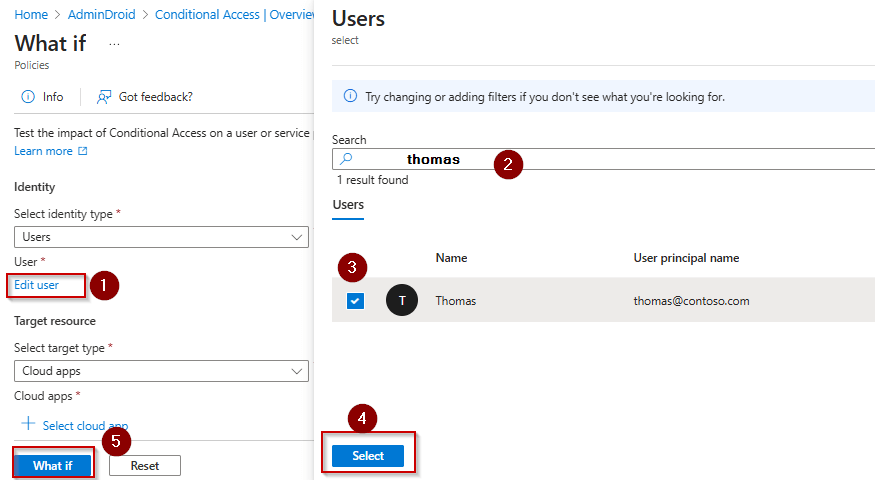
Check how the Conditional Access policy will apply to a user using the What If feature by following these steps:
In the Microsoft Entra admin center, select Protection » Conditional Access » Policies » ‘What If’ in the top bar.
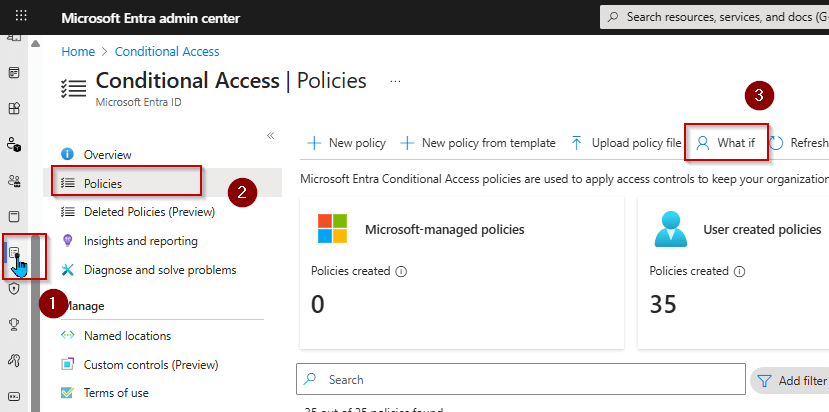
Then, select the user or service principal you want to evaluate.
You can specify the cloud apps and other conditions, like client apps or device platforms, as needed.
Once a user and conditions are selected, click the ‘What If’ button.
The evaluation results will be displayed under two tabs: Policies that will apply and Policies that will not apply.
Policies that will apply: Lists policy names, grant controls, session controls, and policy states affecting the user.
Policies that will not apply: Lists policies that are irrelevant under the specified conditions.

To evaluate the impact of Conditional Access policies in your organization, use the Conditional Access Insights and Reporting Workbook available in Entra ID.
This workbook offers detailed insights to understand why users may fail to meet CA policy criteria.
Additional Info: You can also check which Conditional Access policy blocks sign-ins using the methods below:
Sign-in Diagnostics in Microsoft Entra
Log Analytics in Microsoft Entra ID

If these solutions don’t resolve your issue, feel free to leave a comment in the below ‘Discussion Forum’. We’ll assist you to the best of our ability. However, if none of the solutions worked, you may need to contact Microsoft Support for additional help.