How to Fix Sign-in Error Code AADSTS50053
User Account is Temporarily Locked
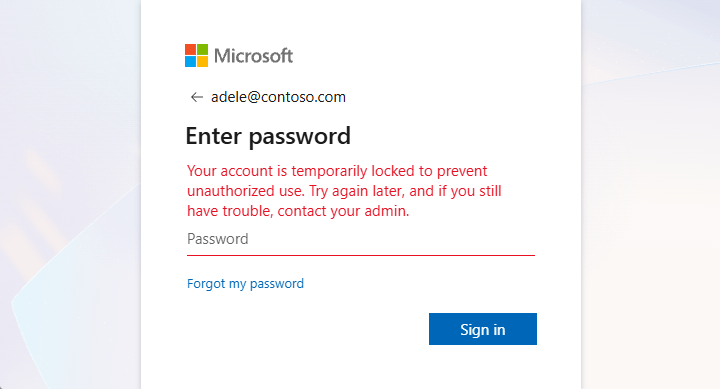


Your account is temporarily locked to prevent unauthorized use. Try again later, and if you still have trouble, contact your admin.
This error occurs when a user account is locked out in Microsoft 365. This typically happens for two reasons:
Repeated failed sign-in attempts due to incorrect user ID or password. These lockouts occur due to the smart lockout in Microsoft 365, which prevents bad actors from guessing passwords or using brute-force methods to gain access.
Sign-in attempts originating from malicious IP address are blocked due to Microsoft Entra ID threat intelligence.
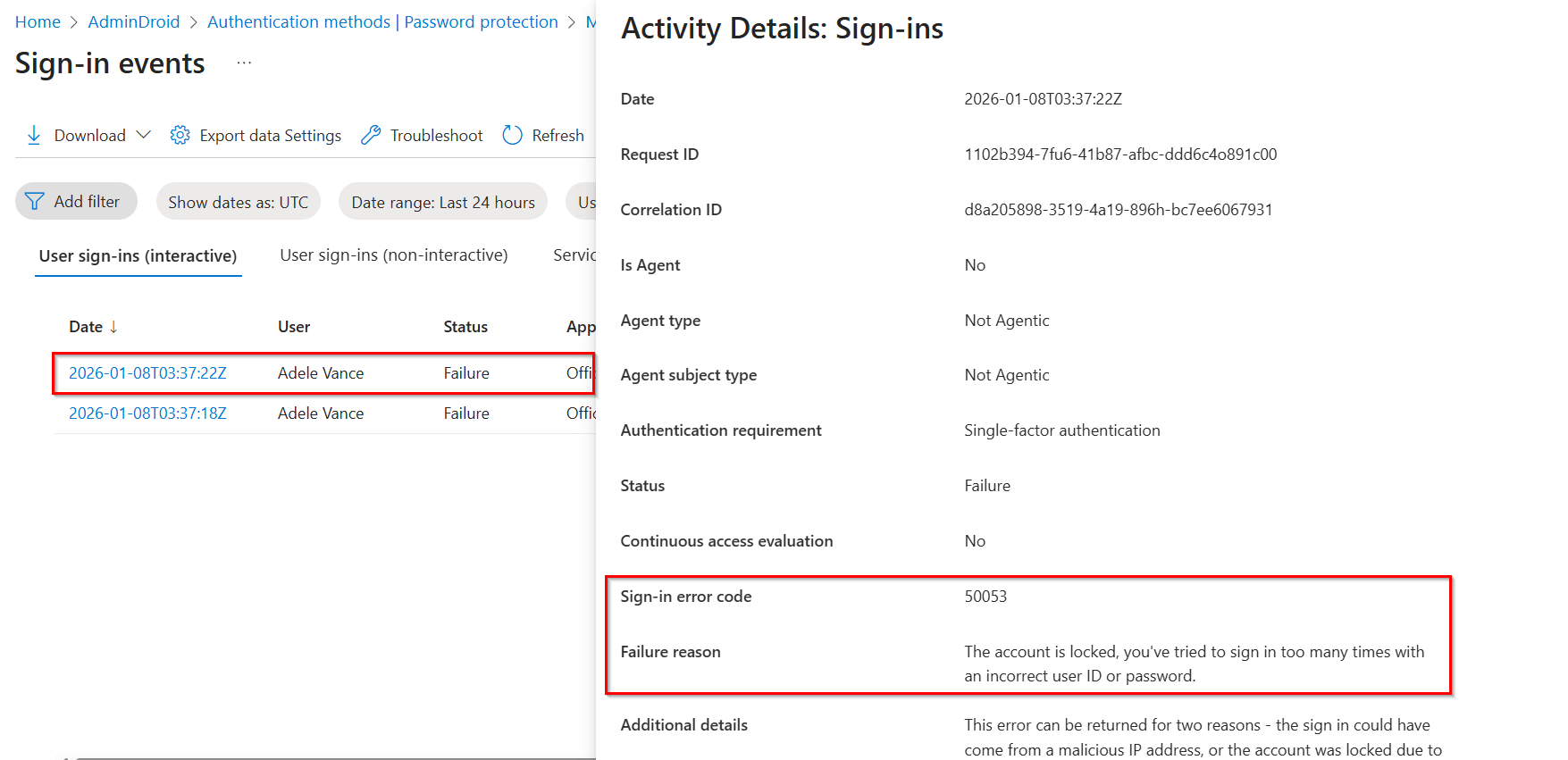
To identify the cause of this 50053 sign-in error, review the failed sign-in attempts in the Microsoft 365 sign-in activity reports.
License Requirement
Microsoft Entra ID P1 or P2 license
Role Requirement
Report Reader
The Microsoft Entra sign-in logs will provide the sign-in time, status, failure reason, and additional details.
Log in to the Microsoft Entra admin center.
Navigate to the Entra ID » Monitoring & health » Sign-in logs.
Apply the following filters to locate sign-ins failed due to invalid credentials in Microsoft 365.
Sign-in error code: 50053
Username: <Enter the user’s UPN>
Date: By default, this filter is preset to the past 24 hours, but it can be customized to the past 7 days or 1 month as needed.
Analyze the blocked user to identify whether the sign-in failed due to invalid credentials or activity from a malicious IP address. You can further refine the report by applying additional filters to display only relevant sign-ins.
Resolve the "Account temporarily blocked " error by applying one of the following remediation methods.
Reset a user password in the Microsoft 365 admin center
Unblock the user account using Microsoft Graph PowerShell
Dismiss the user’s risk state in the Microsoft Entra admin center
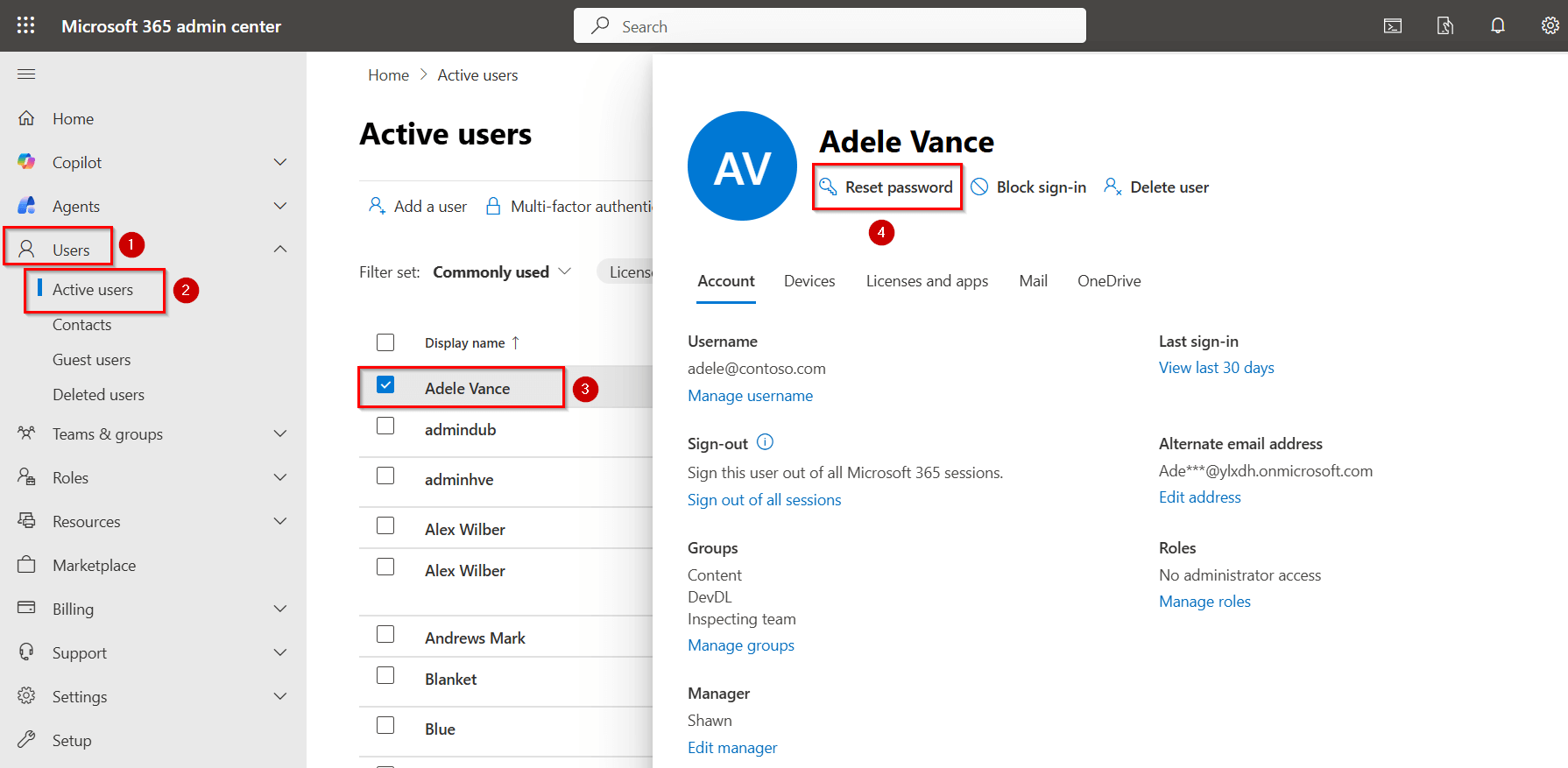
If self-service password reset (SSPR) is not enabled in your organization, you can manually reset the password of the specific user through the Microsoft 365 admin center.
Log in to the Microsoft 365 admin center.
Navigate to Users » Active users.
Select the blocked user and click Reset password.
Choose the Automatically create a password option to generate a temporary password.
Optionally, you can also select ‘Require this user to change their password at next sign-in'.
Securely share the generated temporary password with the user.
Follow the steps below to reset the user’s password and unlock the account using Microsoft Graph PowerShell.
Connect to the Microsoft Graph PowerShell as an administrator using the cmdlet below.
 Windows PowerShell
Connect-MgGraph
Replace <UserID> with the user’s ID and <Password> with the new password, then run the following cmdlet to reset the password and unlock the account.
Windows PowerShell
Update-MgUser -UserId "" -PasswordProfile @{Password = ""; ForceChangePasswordNextSignIn = $true}
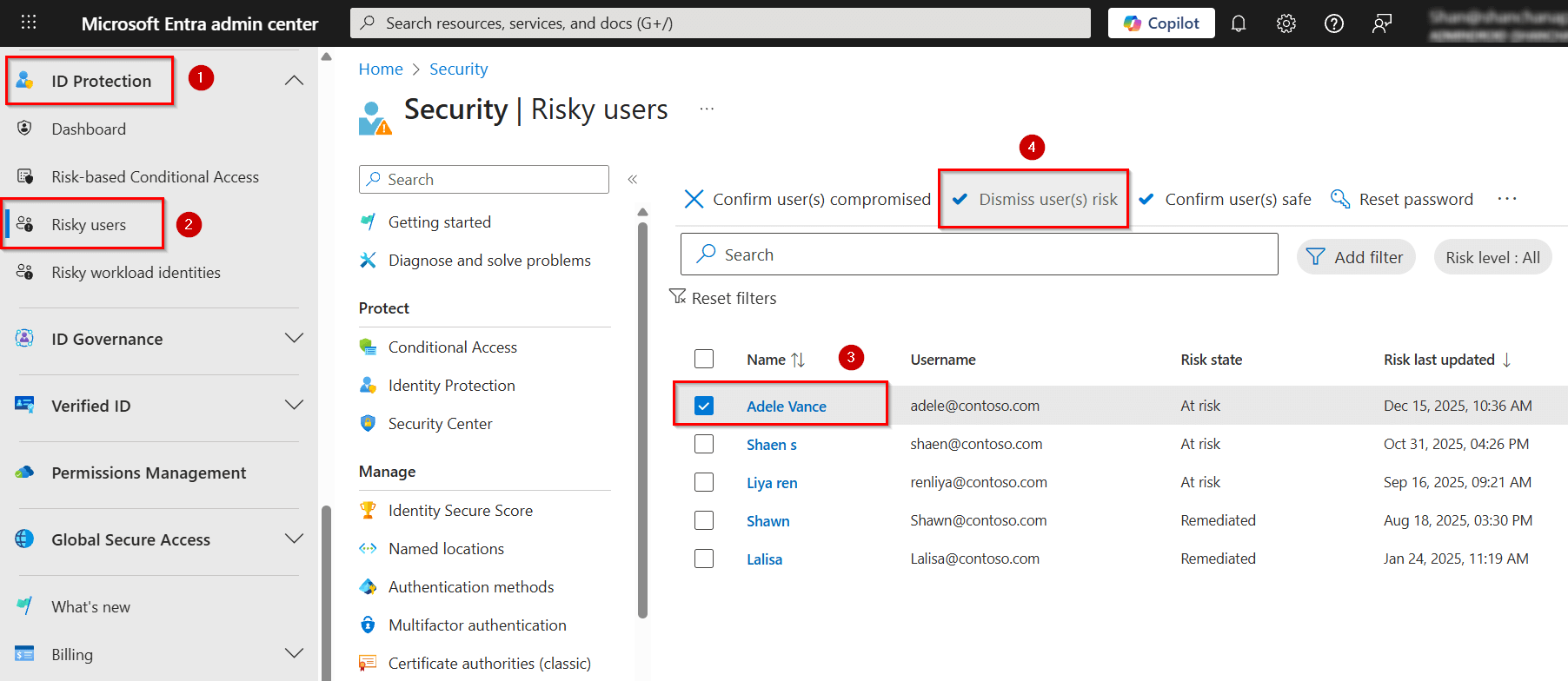
If a user’s sign-in attempt originates from a malicious IP address, their account may be flagged as risky and access could be blocked. After investigating and confirming that the account is not compromised, you can dismiss the user’s risk state in the Microsoft Entra admin center.
Sign in to the Microsoft Entra admin center and go to the ID Protection » Risky Users.
Select the affected user and click Dismiss user risk option.
If you dismiss the risk, the user’s risk status will be removed, and all associated risk detections will also be cleared.
Keep in mind that this method does not change the user’s existing password, so the user’s account will not be fully returned to a secure state. Make sure to contact the user and instruct them to change their password immediately.
This user lockout error in Microsoft 365 occurs when multiple incorrect sign-ins trigger Microsoft’s security protections. Before assuming the account is compromised, try the following checks as a user.
If a self-service password reset (SSPR) is enabled in your organization, select ‘Forgot my password’ on your sign-in page or reset it through the Microsoft 365 password reset portal. Make sure to reset your password using a trusted device and network.
If the account remains locked or you notice suspicious activity, contact your Microsoft 365 admin for further assistance.

We’re here to help! If these solutions don’t resolve your issue, share your concerns in the discussion forum, and we’ll assist to the best of our ability. If none of the solutions work, you may need to contact Microsoft Support for further assistance.