Fix Sign-in Error Code AADSTS50078
User’s MFA Session Expired
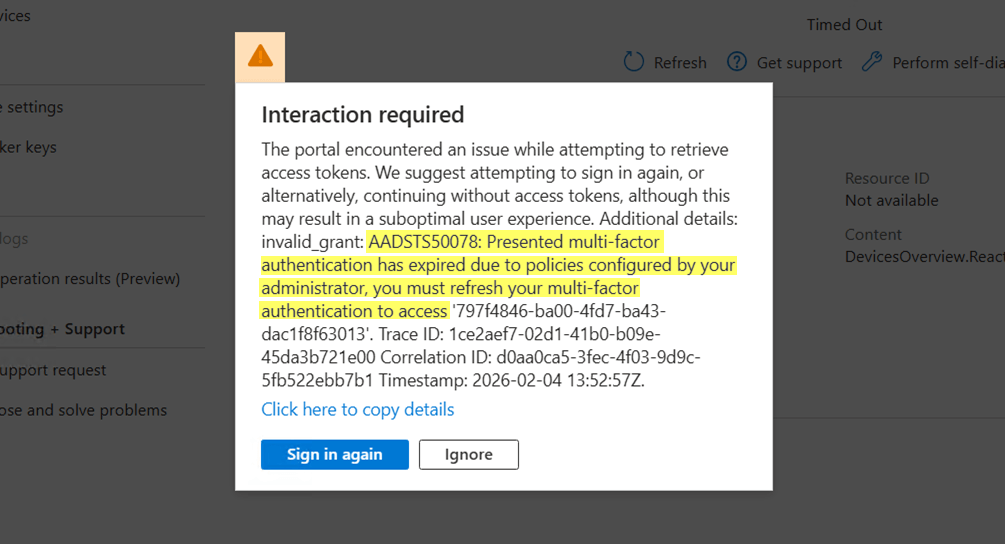


Presented multi-factor authentication has expired due to policies configured by your administrator, you must refresh your multi-factor authentication to access '{resource}'.
The error 50078 occurs in Azure and Entra ID portals, as well as in scenarios where interactive sign-in is not possible in mid-session. The error is triggered when an existing multi-factor authentication (MFA) session becomes invalid.
In most situations, users are automatically prompted to sign in again and complete or re-register MFA without seeing this error. This interruption occurs due to one of the following reasons:
A previously remembered multi-factor authentication expired after reaching the time limit configured by the admin.
The MFA session was revoked by an administrator.
The registered MFA methods were modified or deleted by an admin, causing the issue during the next sign-in.
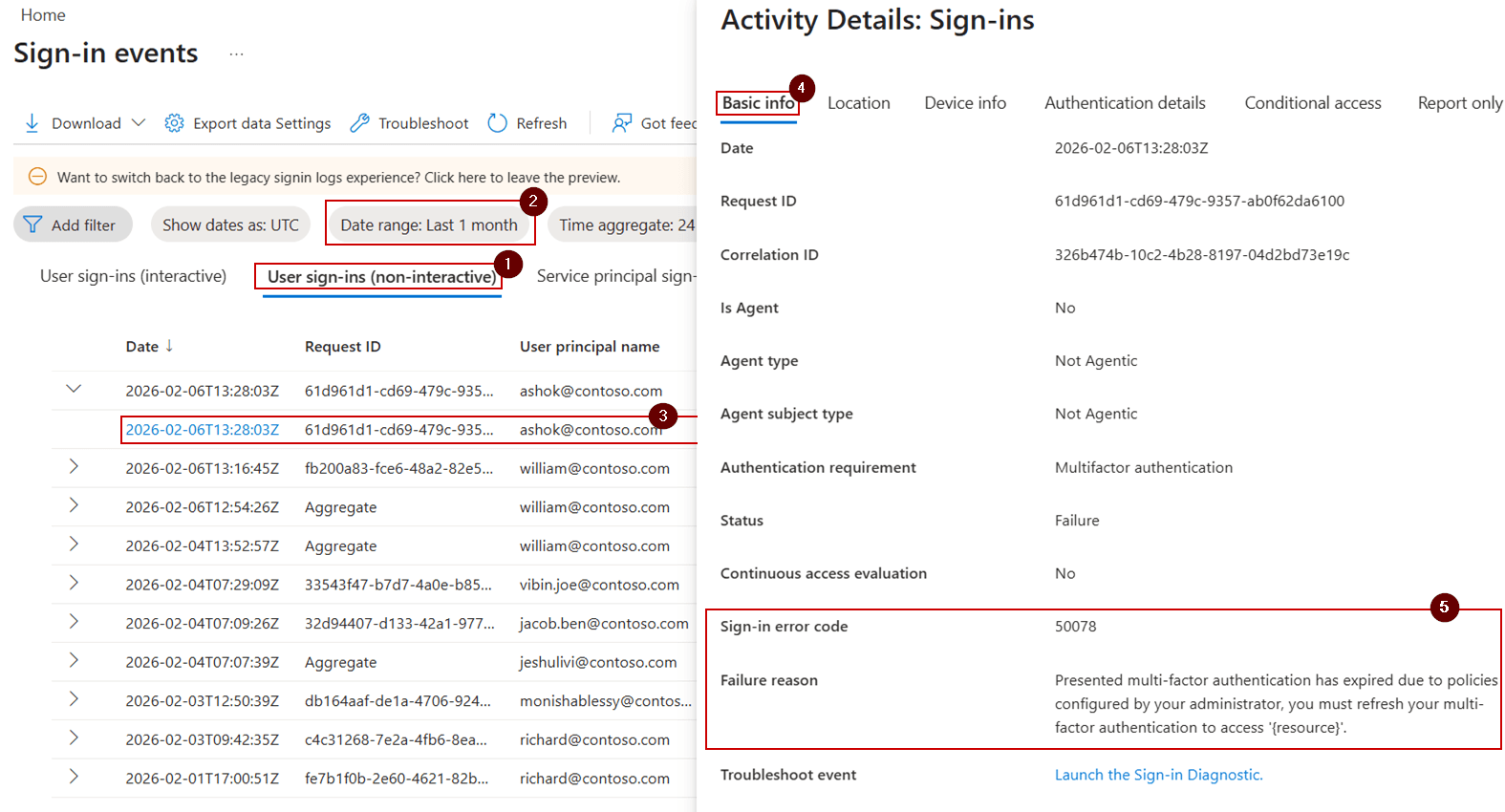
Admins can observe MFA session expiration or revocation events in the Microsoft Entra ID sign-in logs, through the sign-in error code AADSTS50078.
License Requirement
Microsoft Entra ID P1 license
Role Requirement
Reports Reader
Sign in to the Microsoft Entra admin center.
Navigate to Entra ID » Monitoring & health » Sign-in logs » User sign-ins (non-interactive).
Use the Add filter option and select Sign-in error code: 50078 to analyze Microsoft 365 sign-ins that were interrupted due to MFA expiration.
Adjust the Date range filter as required. You can customize the time interval for up to 30 days.
After error code 50078 occurs, admins can re-enable users’ access to Microsoft 365 services using one of the following methods.
Reset MFA for the Microsoft 365 user using Entra admin center
Require multi-factor authentication re-registration using PowerShell
Perform the steps below in the Entra portal to allow the user to re-register MFA methods when they cannot complete multi-factor authentication after encountering error 50078.
Sign in to the Microsoft Entra admin center.
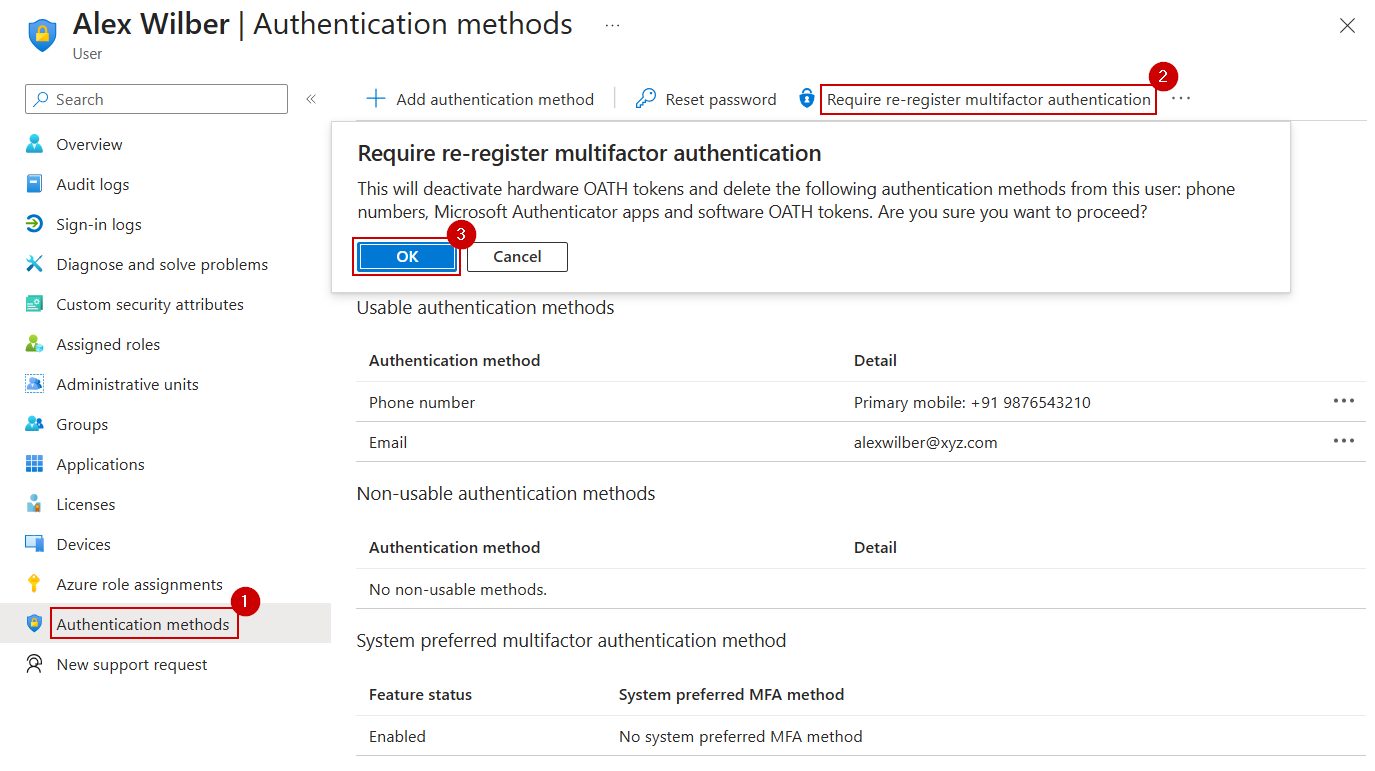
Navigate to Identity » Users » All users and select the affected user.
Go to Authentication methods and select the Require re-register multifactor authentication option. Then, confirm the action.
This forces the user to re-register MFA during their next sign-in after password authentication.
Follow the steps below to reset user MFA authentication methods using a custom PowerShell script. Ensure that you have the required delegated Microsoft Graph permissions, ‘User.Read.All’ and ‘UserAuthenticationMethod.ReadWrite.All’.
First, download the ResetMFAMethods.ps1 PowerShell script.
Then, execute it based on how you want to re-register authentication methods for users.
 Windows PowerShell
.\ResetMFAMethods.ps1 -UserId "<UserUPN>" -ResetMFAMethod "<Method>"
Replace <UserUPN> with the user principal name and <Method> with the respective MFA method. The supported values for <Method> are, Email, FIDO2, Microsoft Authenticator, Phone, Software OATH, Temporary Access Pass, and Windows Hello for Business.
Windows PowerShell
.\ResetMFAMethods.ps1 -UserId "<UserUPN>"
In addition to the above, the script has the capability to reset MFA method(s) for bulk users based on CSV input, as well as for all users.
Short MFA “remember” durations can increase MFA fatigue and frequently result in errors such as AADSTS50078.
Microsoft recommends setting the “Remember multi-factor authentication” duration to 30 days or less. If the current value is too low, adjust the “Don’t ask again for X days” setting accordingly.
Re-sign in to the Microsoft 365 application: Sign out and sign back in to the application where the error occurred, then complete the MFA prompt shown on the screen.
Reconnect the session after MFA changes: If interactive sign-in is not possible during an active session, manually sign in again to restore the session and complete MFA.
Register a multi-factor authentication method: If your existing MFA method was deleted or reset by an administrator, register a new MFA method to regain access.

If these solutions don't resolve your issue, feel free to leave a comment in the below 'Discussion section'. We'll assist you to the best of our ability. However, if none of the solutions worked, you may need to contact Microsoft Support for additional help.