🎯31 daily security challenges for Cybersecurity Month. Start Playing

Power Automate Templates for Microsoft 365

Tired of the same Microsoft 365 tasks eating up your day? Let our pre-built templates do the heavy lifting.

Each flow solves common pain points in your daily administrative operations and can be deployed in just minutes — giving you more time to focus on what really matters!

Power Automate Templates for Microsoft 365

Ready-to-Deploy

Pre-built flows that integrate instantly with Microsoft 365.

Fully Customizable

Tailor templates to fit your organization’s needs.

No Expertise Required

Easy, guided setup with clear instructions.

Cost Effective

Reduce development effort and consulting costs.

bg-pattern-1

Deploy Microsoft 365 Automation Templates in Minutes

1

Download & Import

Click “View Template” to download the .zip file and import it into Power Automate.

2

Configure Connections

Connect your Microsoft 365 services using your account.

3

Customize & Deploy

Tailor the flow to your specific organizational requirements and deploy it to start automating immediately.

Pre-built Automation Flows for Microsoft 365 Administration Tasks

Explore a growing library of Power Automate templates, each engineered to bring seamless automation to your daily operations.

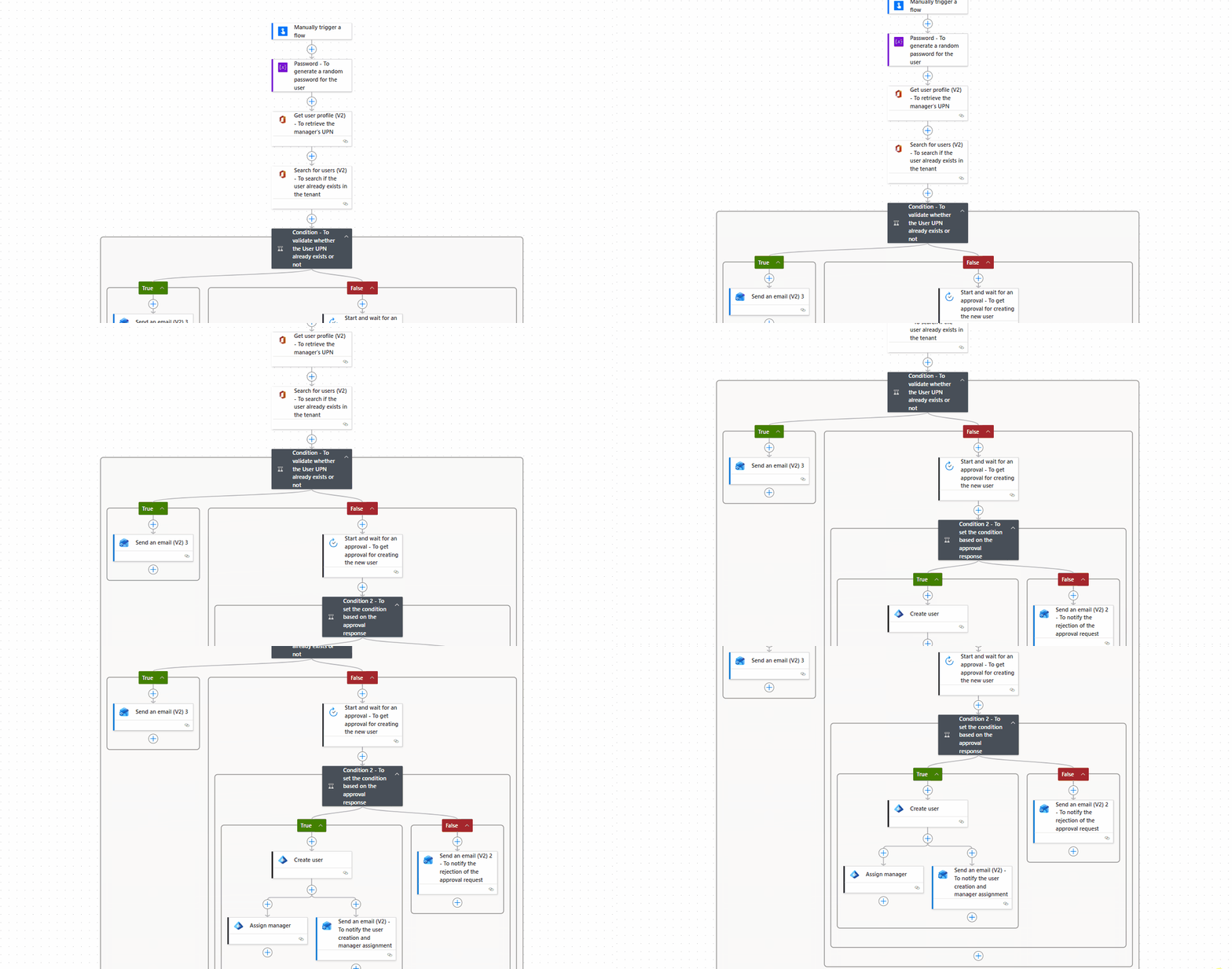
Quick Start Onboarding with Manager Approval

Simplify new user onboarding with approval workflow. Managers validate requests before accounts are provisioned. This helps reduce errors, improve consistency, and save admin time.

What This Flow Does:

  • Collects required user details via form
  • Generates a secure password automatically
  • Sends request for manager approval
  • Creates user in Entra ID upon approval
  • Assigns the appropriate manager
  • Emails generated password directly to manager
Quick Start Onboarding with Manager Approval

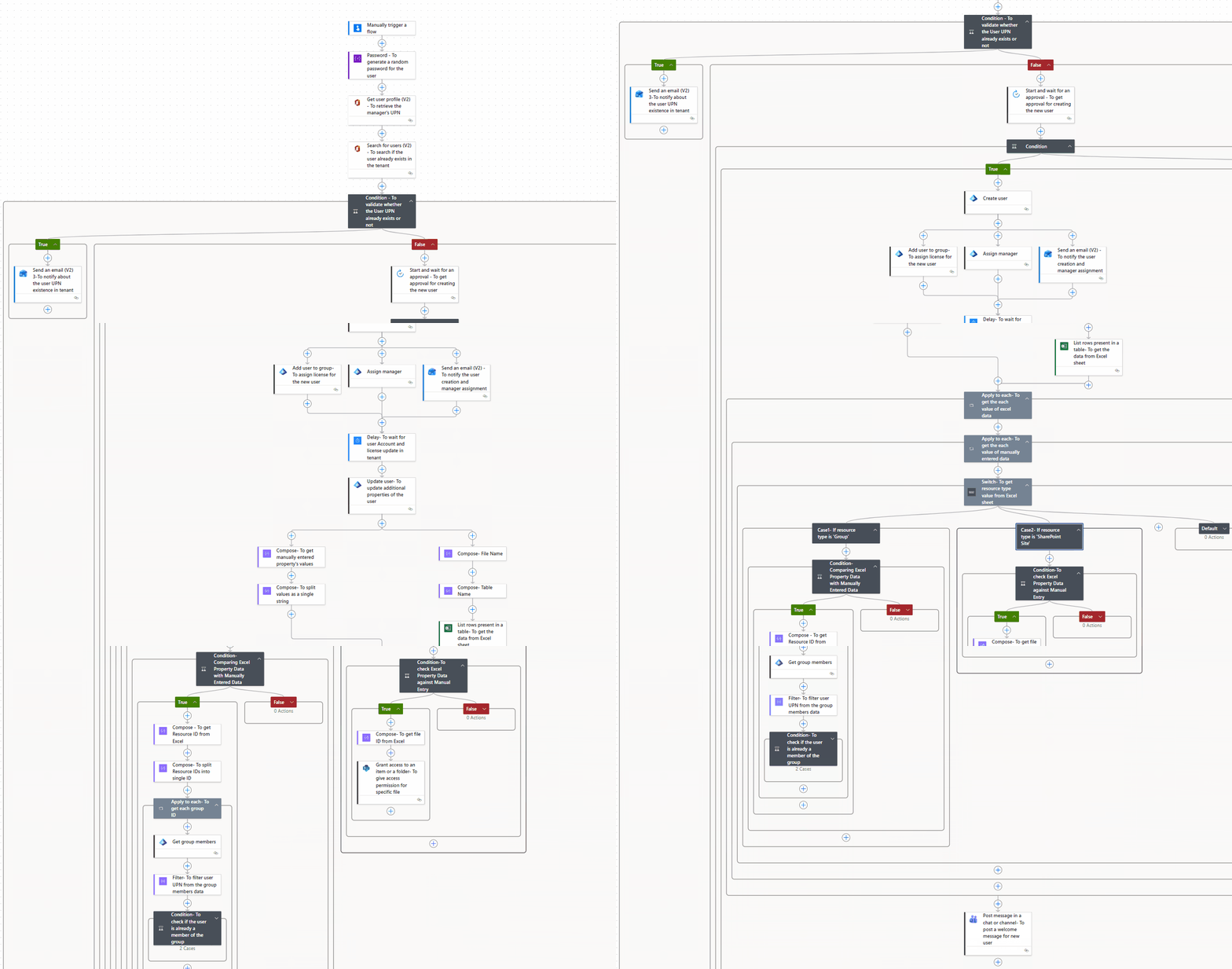
M365 User Onboarding with Automated Access

Automate user provisioning with the right access from day one. From licensing to resource access, everything is handled in a single workflow. This reduces onboarding time and eliminates repetitive admin tasks.

What This Flow Does:

  • Creates a new user in Entra ID
  • Assigns M365 license automatically
  • Updates user profile details
  • Adds user to required Microsoft 365 and security groups
  • Grants access to necessary SharePoint files
  • Emails generated password directly to manager
  • Sends a welcome message via Teams
M365 User Onboarding with Automated Access

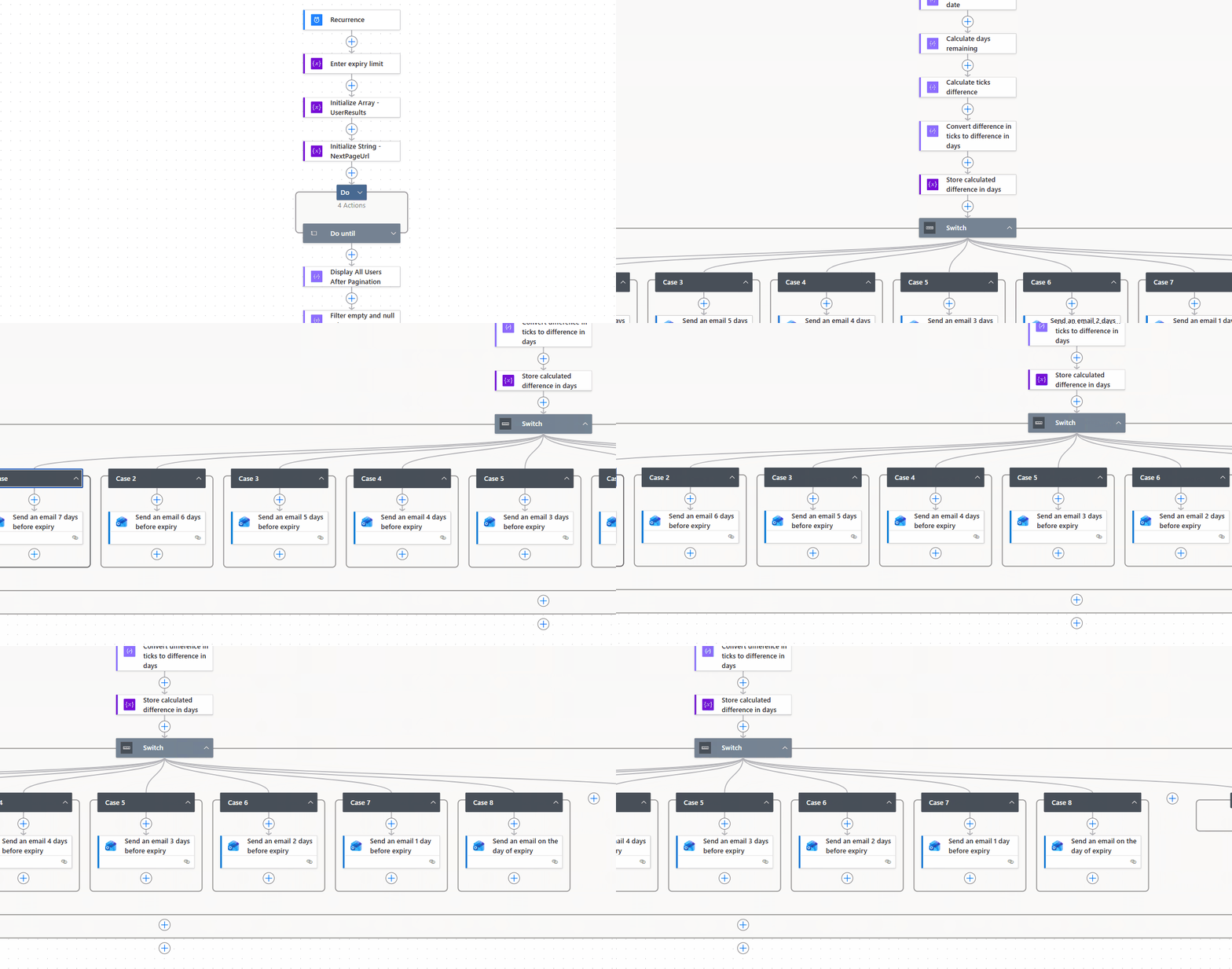
Send Password Expiry Reminders to M365 Users

Proactively notify Microsoft 365 users about upcoming password expirations and send follow-up reminders for 7 days to prevent access disruptions.

What This Flow Does:

  • Sends 7-day follow-up password expiry notifications.
  • Works without requiring any premium connectors.
  • Supports large organizations by retrieving all users beyond the 999-user limit using pagination (@odata.nextLink).
  • Fully customizable to fit your organization's notification needs.
Send Password Expiry Reminders to M365 Users

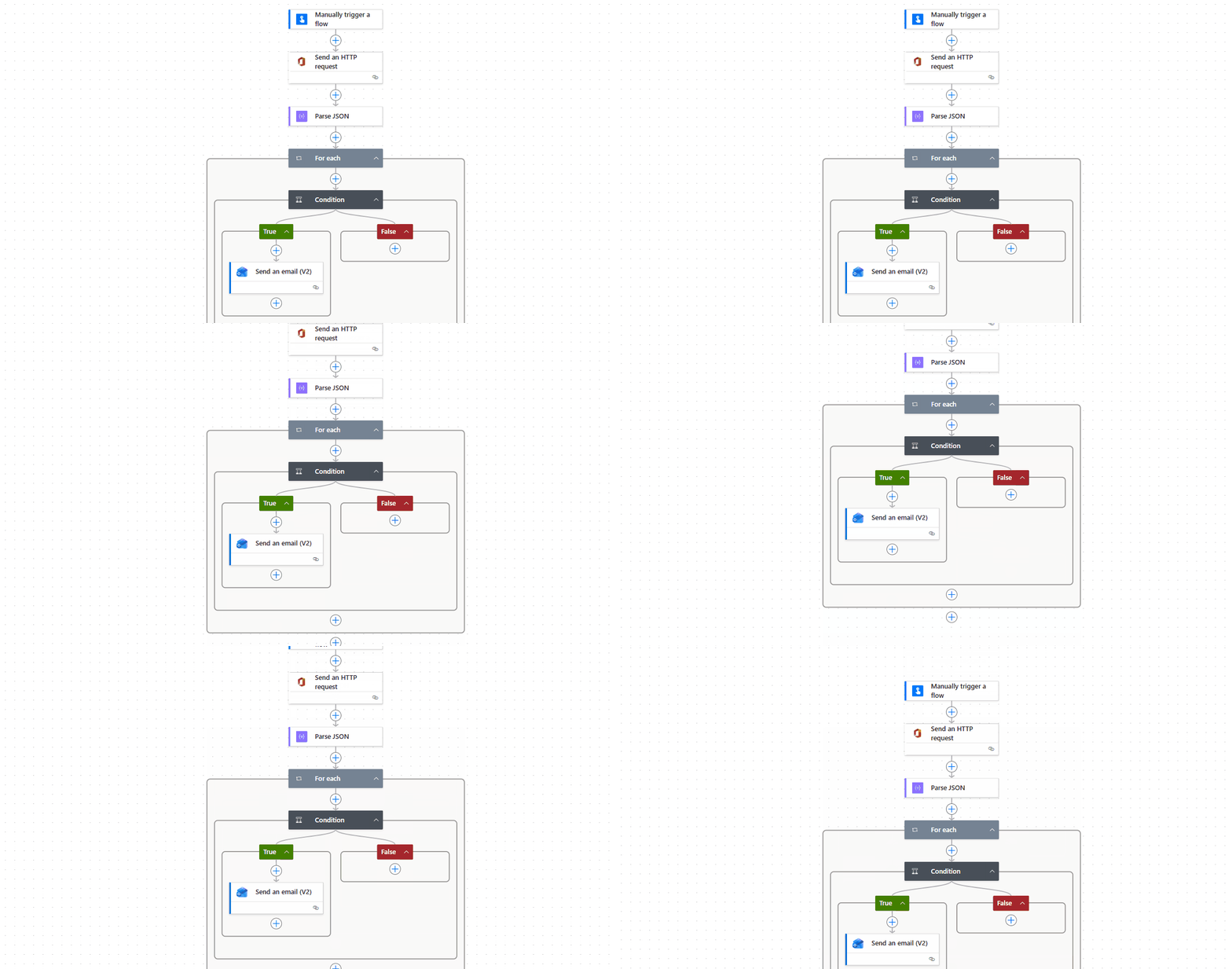
Remind Users to Rotate Old Passwords

Send automated password change reminders based on M365 users’ password age, keeping accounts secure without manual tracking.

What This Flow Does:

  • Retrieves users’ last password change date from Microsoft Graph API.
  • Checks for passwords that have not been changed since the specified number of days.
  • Sends an email to users reminding them to update their passwords.
  • Works without requiring any premium connectors.
Remind Users to Rotate Old Passwords

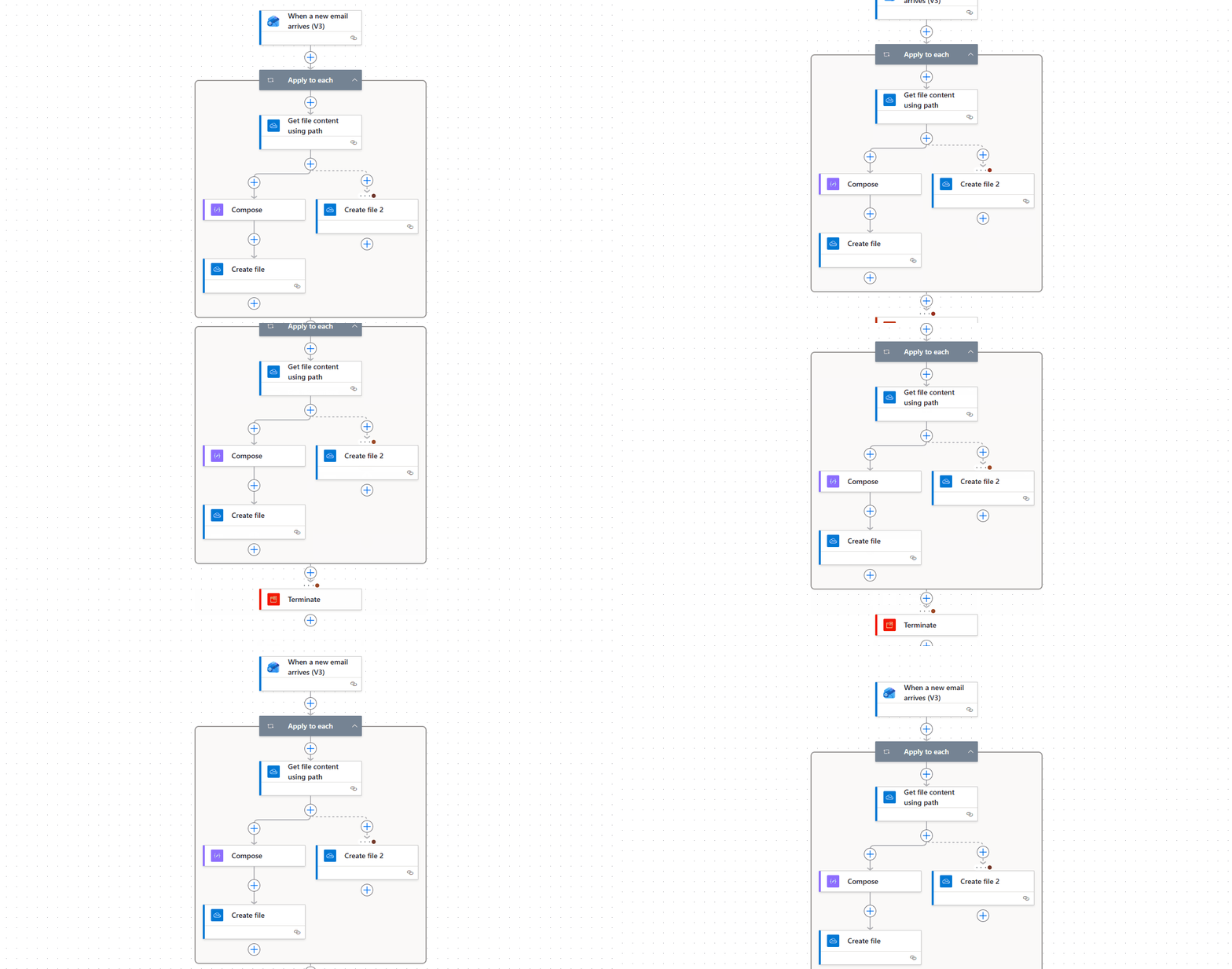
Automatically Save Outlook Email Attachments in OneDrive

Managing email attachments can quickly become overwhelming, and important files often get lost in busy inboxes. This automated workflow ensures every attachment is captured, saved, and organized in OneDrive - completely hands-free.

What This Flow Does:

  • Monitors incoming emails for attachments
  • Automatically saves attachments to OneDrive
  • Organizes files using custom folder structure
  • Applies metadata for easy searchability
  • Works 24/7 without manual intervention
Automatically Save Outlook Email Attachments in OneDrive

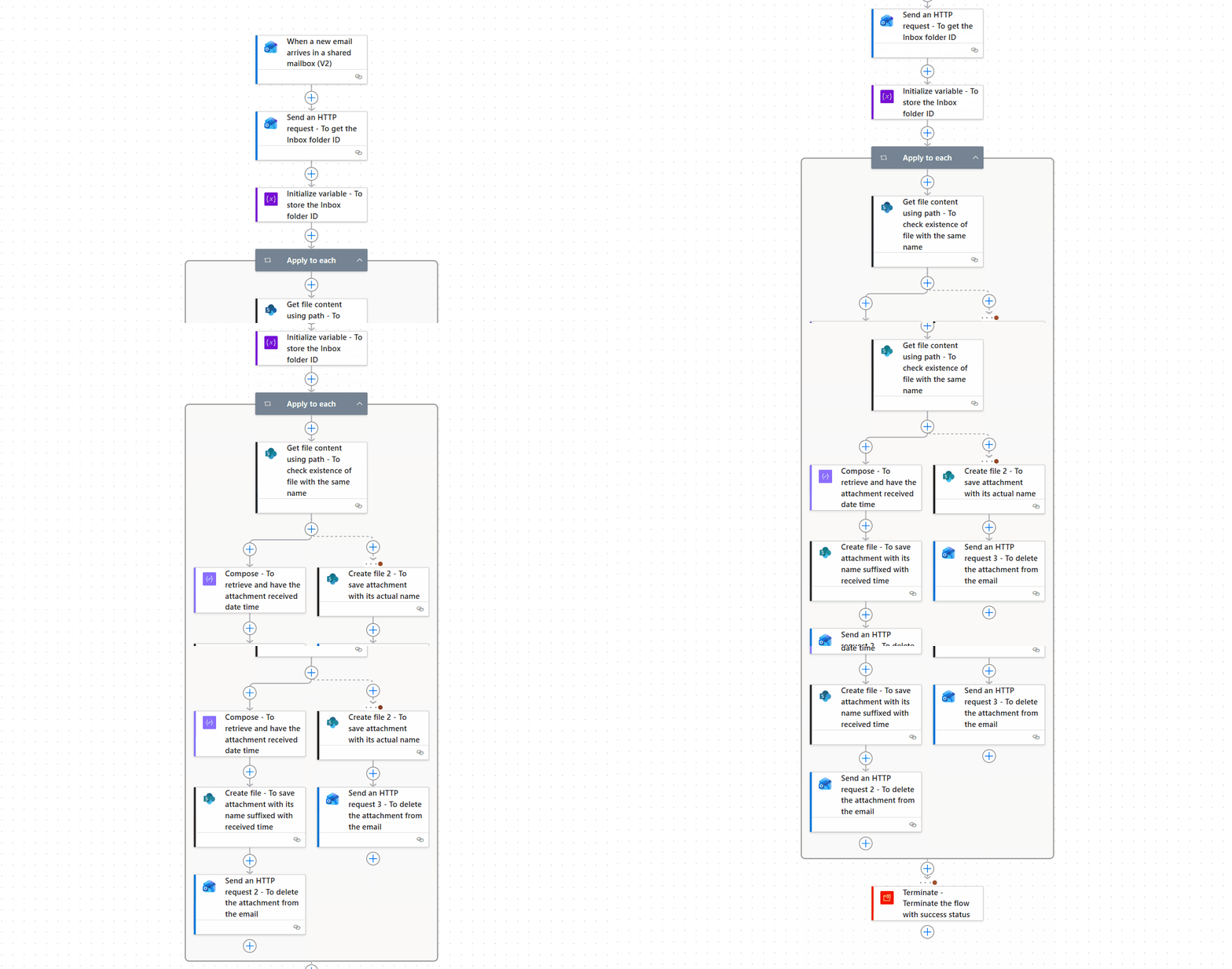
Automatically Save Shared Mailbox Attachments to SharePoint

Automatically capture attachments received in shared mailbox and store them in SharePoint with a structured folder setup. This ensures documents centralized, searchable, and governed without extra admin effort.

What This Flow Does:

  • Monitors shared mailbox for attachments
  • Automatically uploads files to SharePoint document library
  • Detects and prevents duplicate files
  • Applies custom naming conventions
  • Maintains organized, searchable storage
Automatically Save Shared Mailbox Attachments to SharePoint

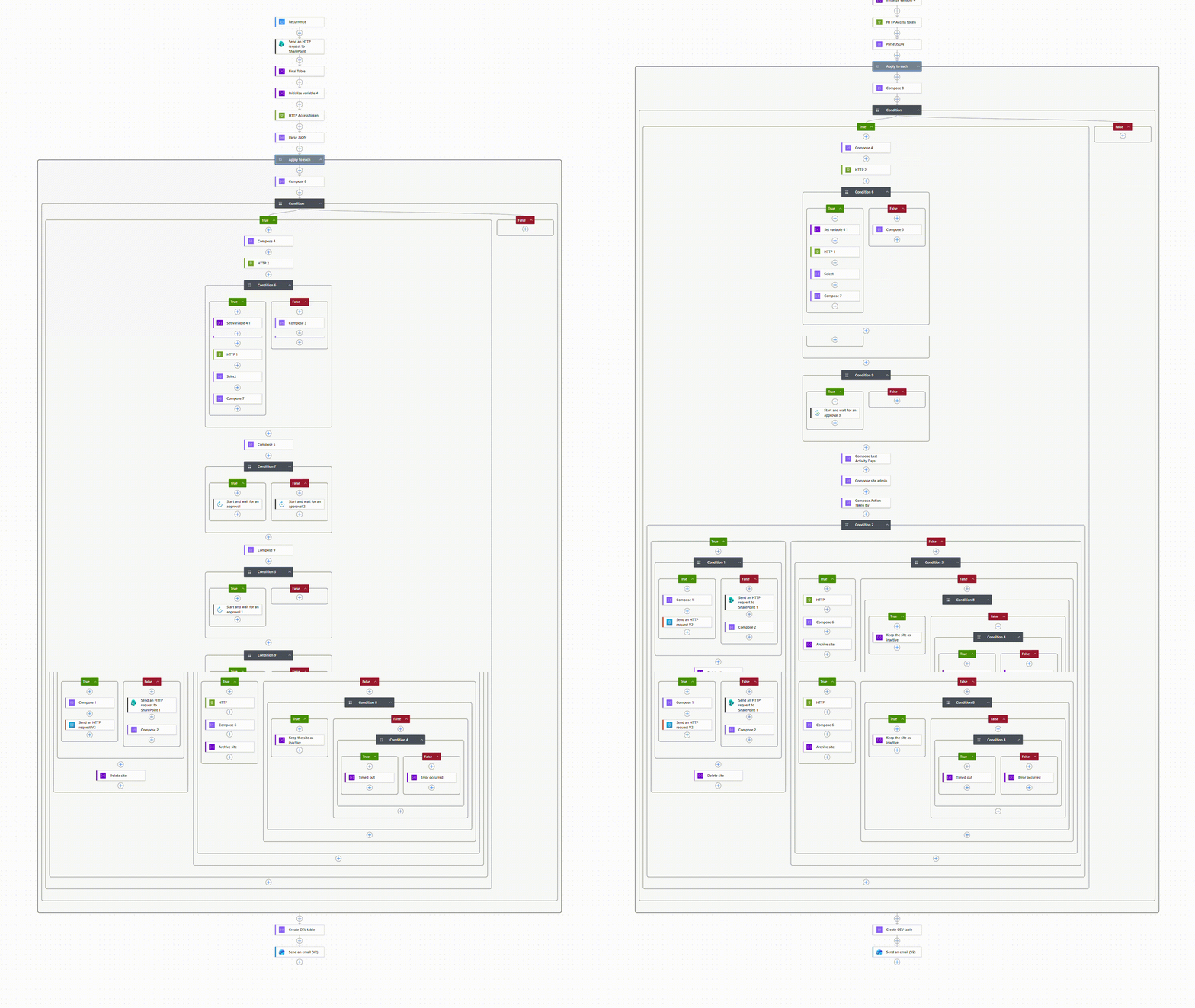
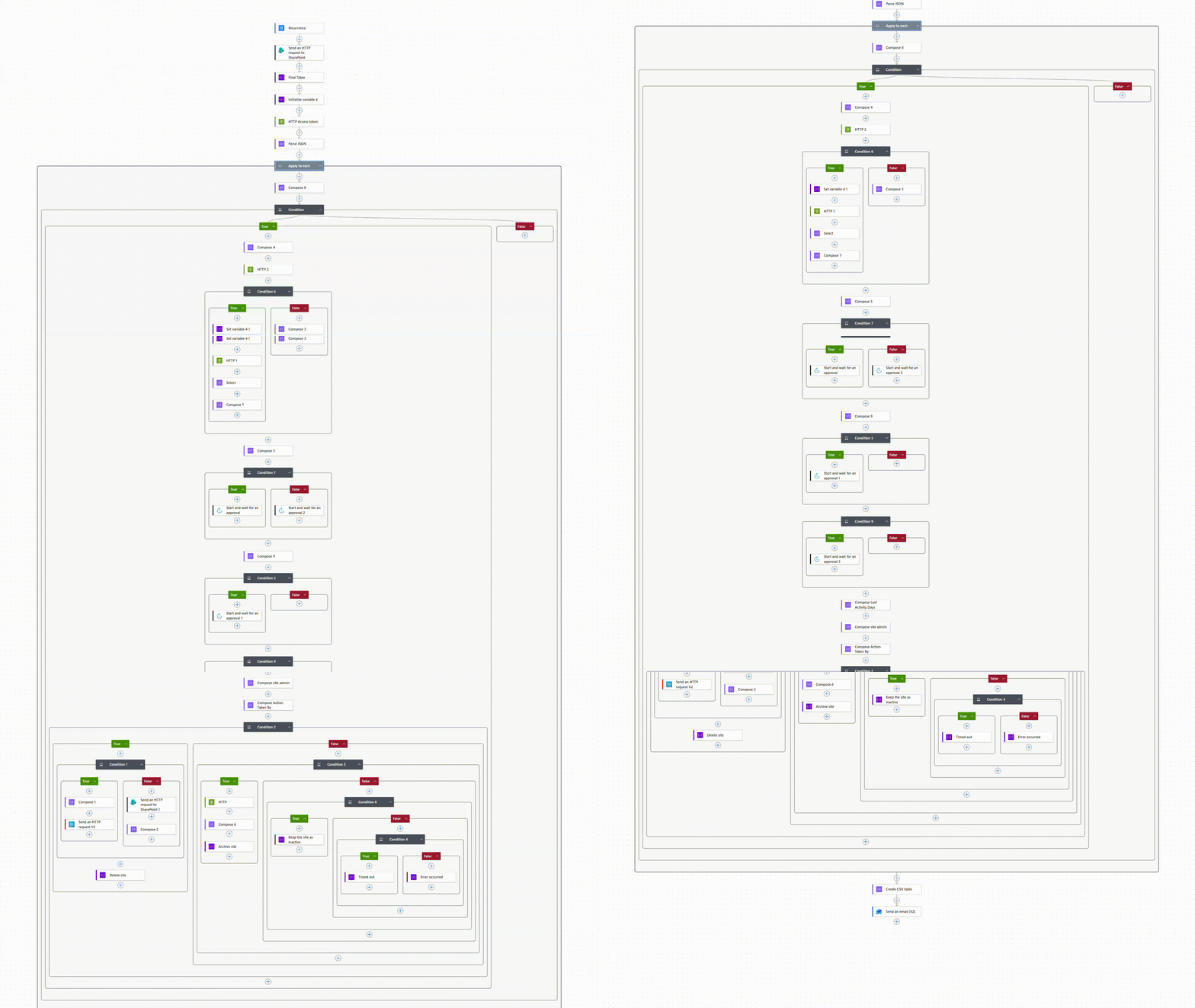
Clean Up Inactive SharePoint Sites with Approval Workflow

Inactive SharePoint sites can clutter your environment, increase storage costs, and make site governance harder over time. This automated workflow identifies inactive sites, sends them to admins for review, and helps safely remove or archive unused sites.

What This Flow Does:

  • Lets you set a custom inactivity threshold for identifying inactive SharePoint sites.
  • Automatically identifies inactive SharePoint sites.
  • Processes hub sites, Content Center sites, and other special sites separately.
  • Routes approval requests to site admins, with automatic rerouting to the designated fallback admin if delivery fails.
  • Enables admins to archive, delete, or retain inactive sites during approval process.
  • Sends detailed cleanup reports after every run.
Clean Up Inactive SharePoint Sites with Approval Workflow

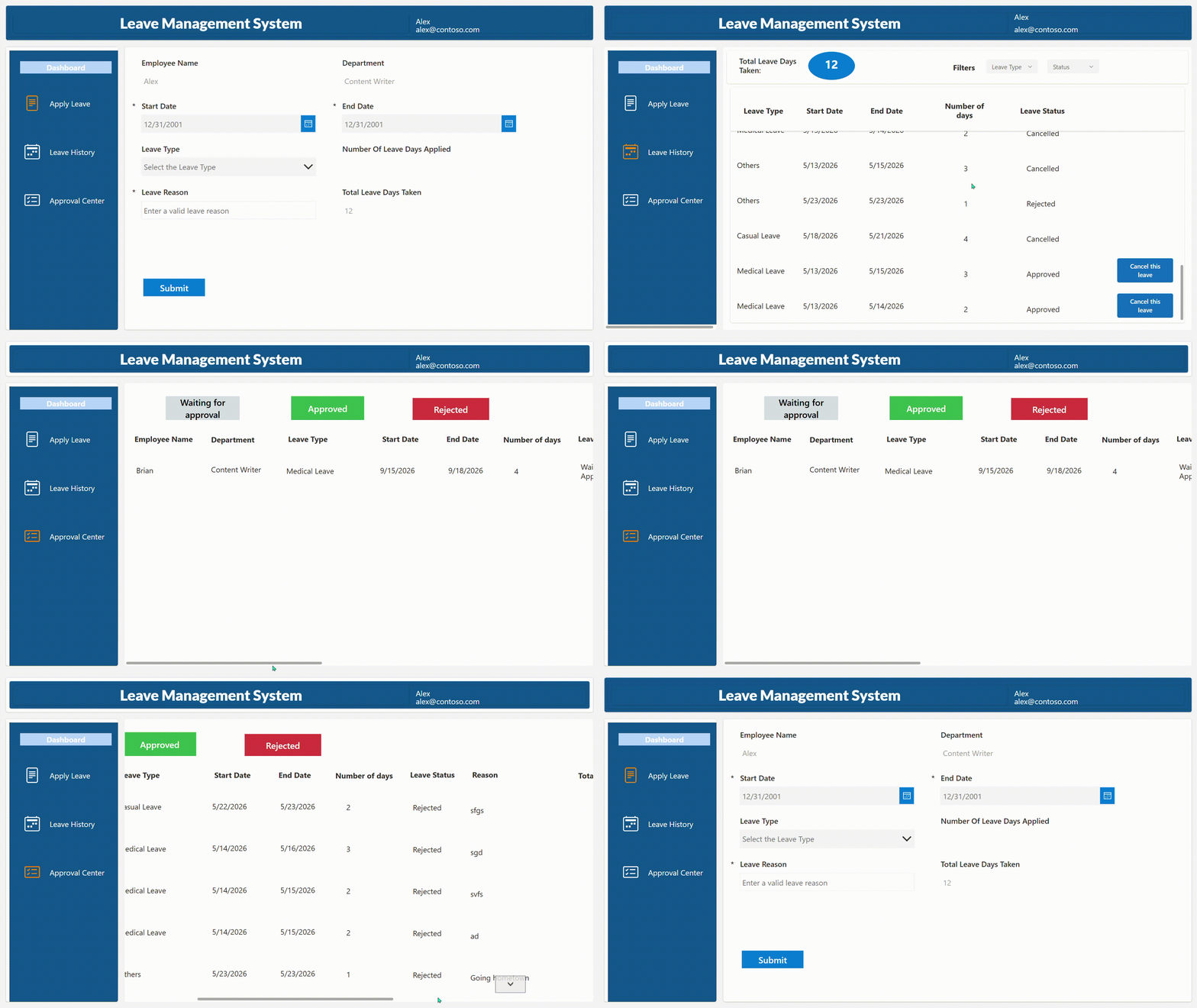
Track & Manage Employee Leaves with a Leave Tracker App

Tracking employee leave through emails, chats, and spreadsheets can delay approvals and make leave requests hard to track. This centralized app provides a user-friendly experience for managing leave requests from submission to approval in one place. Employees can submit leave requests, while managers can review, approve, and track every request within the app.

What This App Does:

  • Provides a customized leave application with user details auto-filled from Entra ID.
  • Supports role-based access with separate employee and manager experiences.
  • Routes leave requests to assigned managers in Entra ID.
  • Handles leave requests and cancellations with real-time status tracking.
  • Offers a dedicated leave history view with quick filters.
  • Provides an in-app approval center for managers to review and approve requests.
  • Sends instant Teams and Outlook notifications for every leave update.
Track and Manage Employee Leaves with a Leave Tracker App

Set Up Request-and-Approval Workflow for External File Sharing in SharePoint

Uncontrolled external file sharing in SharePoint can put sensitive files at risk. This approval workflow lets users submit files for external sharing through a dedicated request form. Every request is automatically routed to admins for approval, and files are shared only after approval, helping admins track and control external sharing more easily.

What This Flow Does:

  • Lets users submit the external file sharing requests through a simple upload form.
  • Stores uploaded files securely in a restricted SharePoint document library until approval.
  • Sends approval requests to designated admins through Outlook email or Microsoft Teams for review.
  • Once approved, an external sharing link is created for the file and sent to the requester.
  • If rejected, the file is deleted from the upload location.
Set Up Request-and-Approval Workflow for External File Sharing in SharePoint

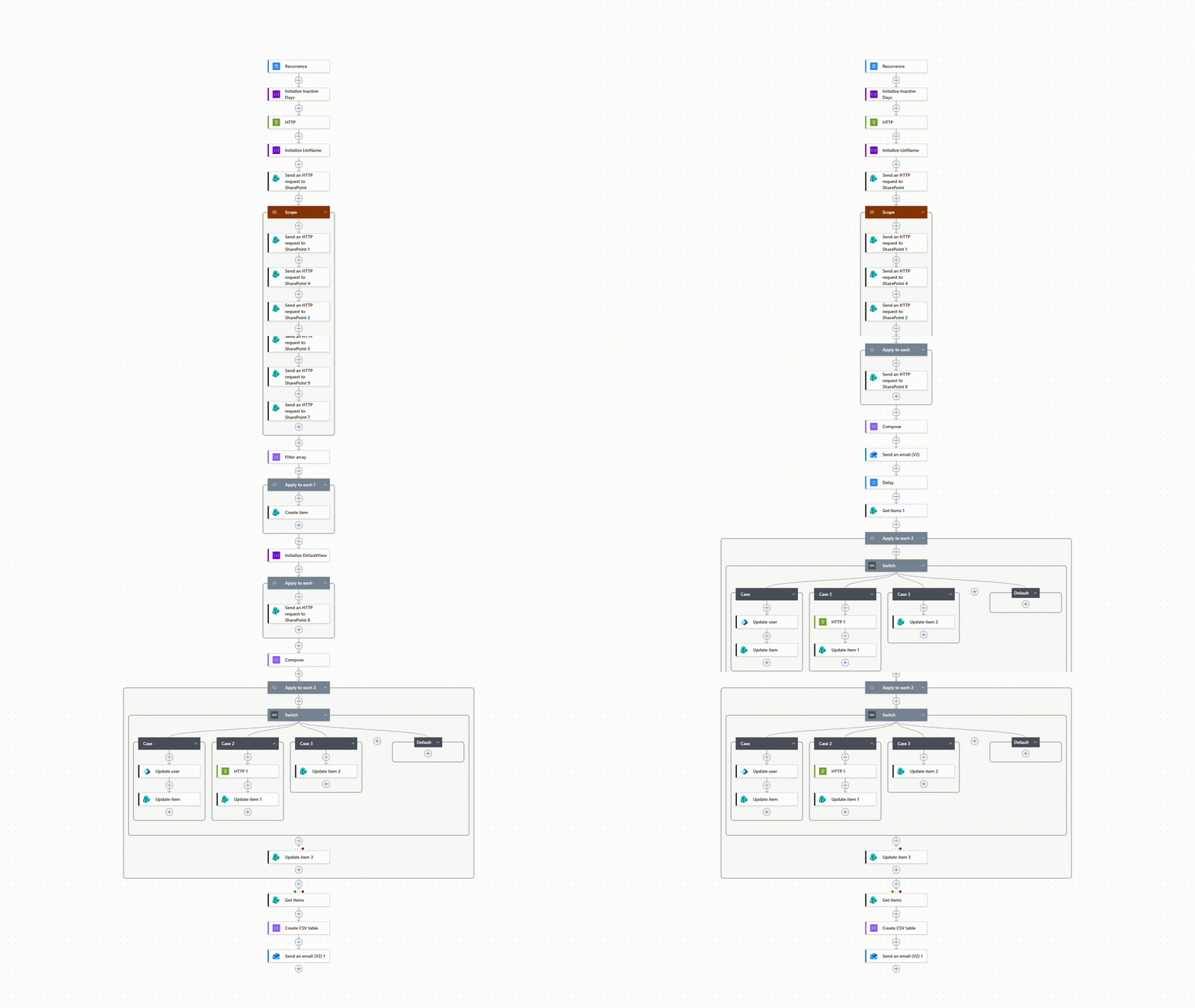
Clean Up Inactive Guest Users in Microsoft 365

Inactive guest accounts may continue to retain access to previously shared files, recordings, etc. This automated workflow identifies stale guest accounts and sends them for review. Admins can decide to keep, disable, or delete guest accounts as needed. This reduces access risks and keeps guest access secure with minimal manual effort.

What This Flow Does:

  • Lets admins set an inactivity threshold to find stale guest accounts.
  • Records inactive guest accounts in a SharePoint list.
  • Sends the SharePoint list link to admins through email to review and take action.
  • Lets admins keep, disable, or delete stale guest accounts.
  • Runs automatically based on your preferred interval (e.g., every 30 days).
  • Sends a summary report after each run.
Clean Up Inactive Guest Users in Microsoft 365

Automate Your Daily Admin Work!

Why handle routine jobs the hard way? Deploy the ready-to-use Power Automate templates and watch everyday Microsoft 365 tasks take care of themselves.