Fix Sign-in Error Code AADSTS500571
Guest User Account is Disabled
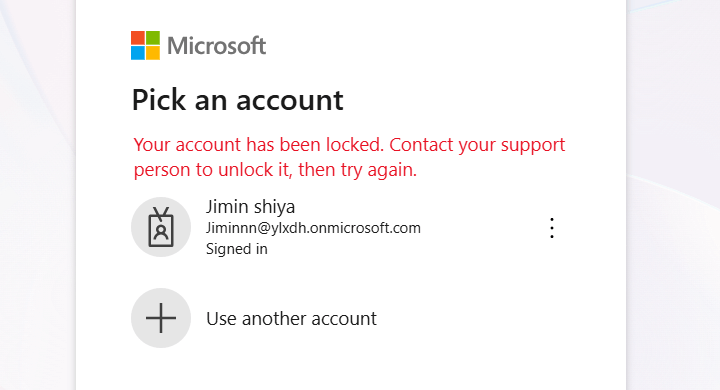


Your account has been locked. Contact your support person to unlock it, then try again.
This error occurs when a guest tries to access a Microsoft 365 tenant where their account has been disabled. Here are the possible causes of Entra ID sign-in error code 500571.
This error occurs when a guest user is flagged as risky in their home tenant. The external tenant enforces a risk-based Conditional Access policy that requires password reset when risk is detected.
Since the guest user's risk status is determined by their home tenant, they won't appear under Risky Users in the external tenant. So, admins in the external tenant cannot dismiss the risk state for these guest users.
Note that, the guest user's risk status is determined in their home tenant, so they do not appear under Risky Users in the external tenant. Thus, ask your guest user to contact their home tenant admin to resolve the risk.
A Microsoft 365 admin might mistakenly disable a guest user account during bulk user updates or routine security audits in Entra ID.
When a guest user is disabled, admins can observe the sign-in error code AADSTS500571 in the Microsoft Entra ID sign-in activity reports.
License Requirement
Microsoft Entra ID P1 license
Role Requirement
Report Reader
Log in to the Microsoft Entra admin center.
Go to the Identity » Monitoring & health » Sign-in logs.
Apply the following filters to locate sign-ins related to blocked guest users in Microsoft 365:
Sign-in error code: 500571
Username: <Enter the guest user’s UPN>
Date: Defaults to the past 24 hours. You can customize it to the past 7 days or 1 month as needed.
Review the details of Entra ID guest user’s failed sign-ins. You can also use additional filters to refine the report and display only relevant events.
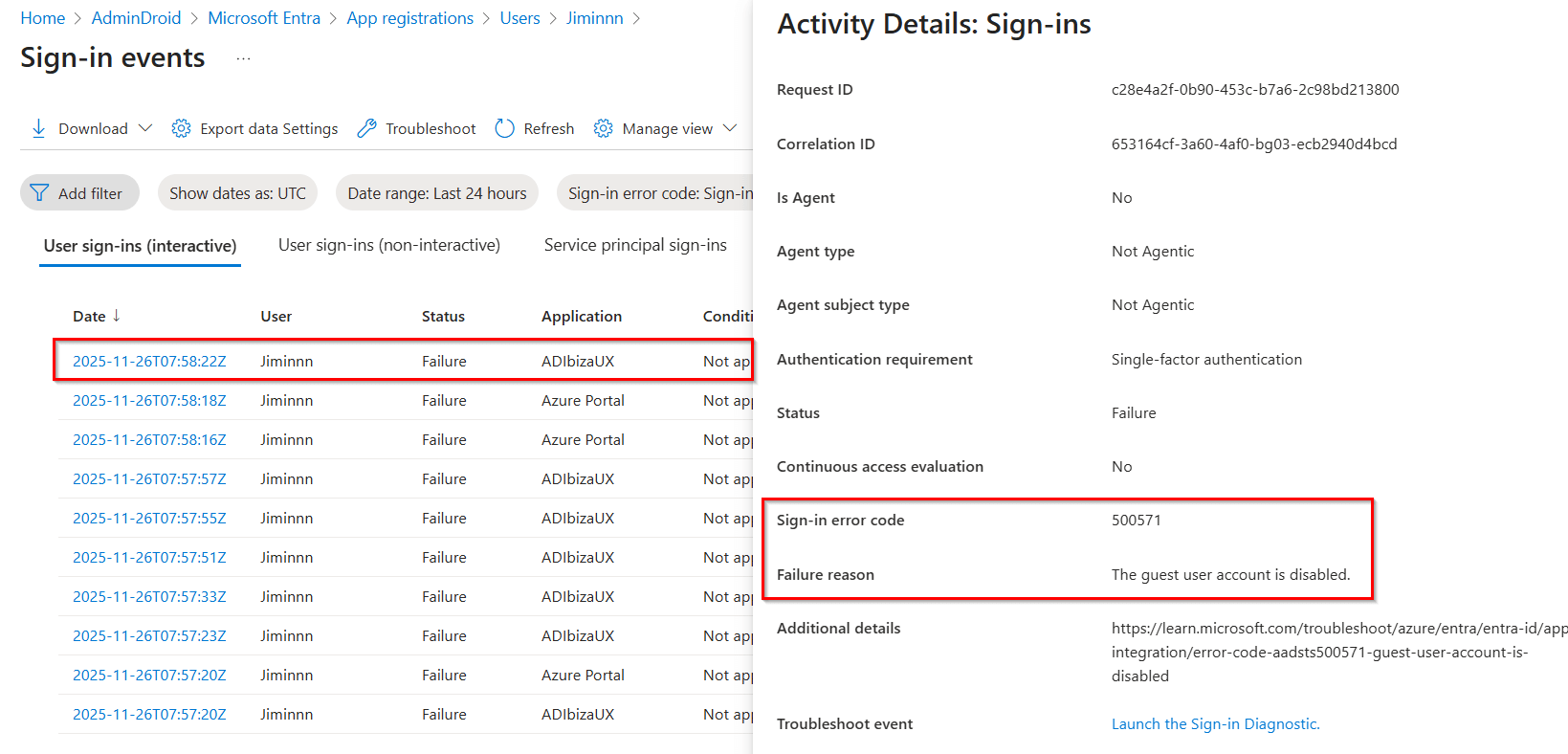
You can unblock disabled guest users in Microsoft 365 using one of the following methods:
Enable disabled guest user in the Microsoft Entra admin center
Enable locked guest user using Microsoft Graph PowerShell
As an admin, you can able to re-enable a disabled guest user in the Microsoft Entra ID.
Open the Microsoft Entra admin center and navigate to Entra ID » Users » All users.
Search and select the disabled guest user. On the user’s overview page, click Edit properties.
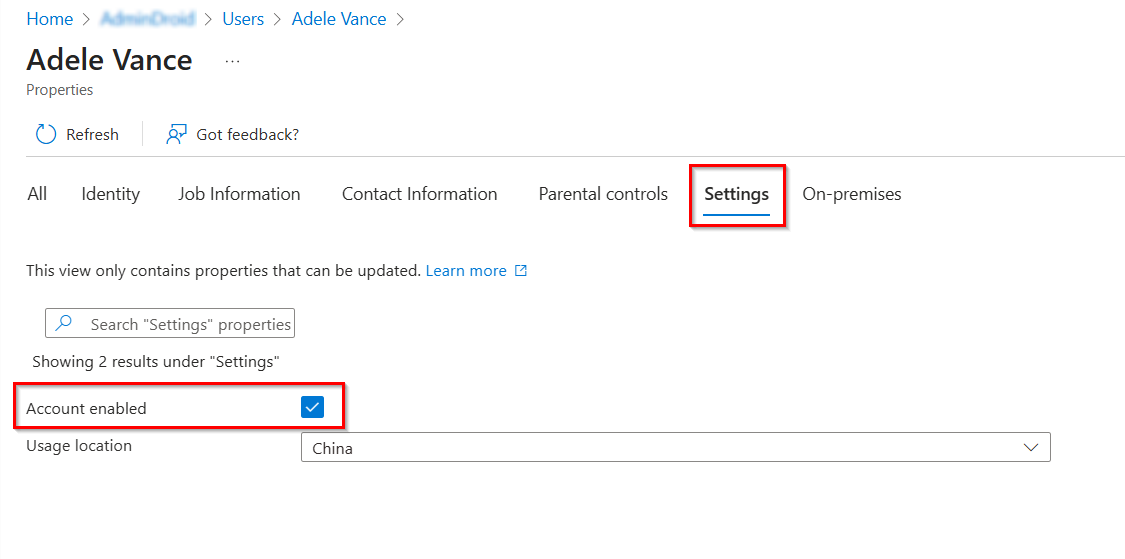
Go to the Settings tab and check the Account enabled option.
Click Save to unblock the guest user in Microsoft Entra ID.
Connect to the Microsoft Graph PowerShell with the required permissions using the below cmdlet.
 Windows PowerShell
Connect-MgGraph -Scopes “User.ManageIdentities.All, User.EnableDisableAccount.All, User.ReadWrite.All, Directory.ReadWrite.All”
Execute the following cmdlet to unlock the disabled guest user in Microsoft 365.
Windows PowerShell
Update-MgBetaUser -UserPrincipalName '<GuestUserUPN>' -UserId <GuestUserId> -AccountEnabled:$true

If access was intentionally blocked due to Conditional Access policies, such as identifying the user as risky, no actions should be taken to unlock the guest user account in Entra ID.

We’re here to help! If these solutions don’t resolve your issue, share your concerns in the discussion forum, and we’ll assist to the best of our ability. However, if none of the solutions work, you may need to contact Microsoft Support for further assistance.