How to Fix Sign-in Error Code AADSTS50055
Password is invalid and expired
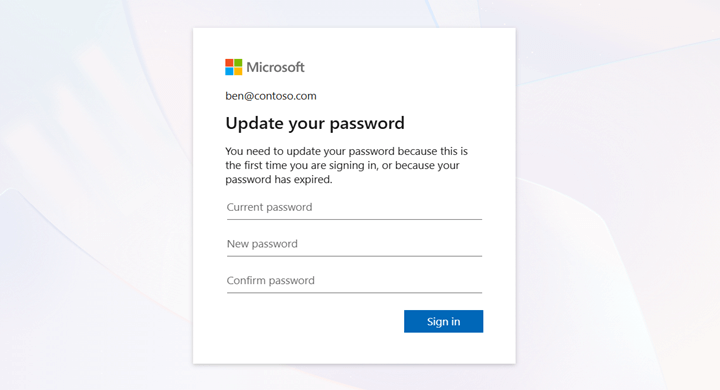


You need to update your password because this is the first time you are signing in, or because your password has expired.
The following are the possible causes for the 50055 error:
When users sign in with an expired password, they are required to change it. If they skip this step, the sign-in will fail with an error 50055.
M365 accounts that require a password change at the next sign-in will trigger error 50055 if the user doesn’t complete the password update.
A new employee receives a temporary password from IT to access their account for the first time. If the user closes the password update prompt, the sign-in fails and error AADSTS50055 occurs.
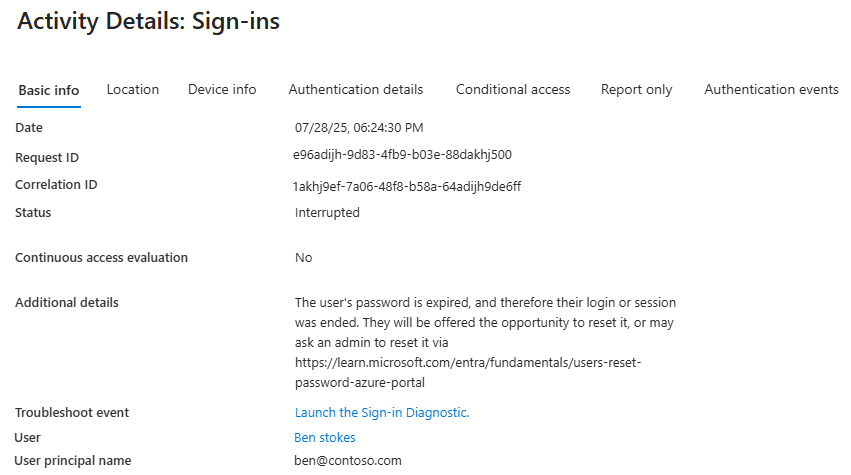
When the user skips the password update prompt, it triggers error 50055. Admins can then check the Microsoft Entra sign-in logs for the exact error details.
License Requirement
Microsoft Entra ID P1 license
Role Requirement
Reports Reader
Admins can investigate the reason for the error by following the steps below.
Log in to the Microsoft Entra admin center.
Navigate to the Sign-in logs under Entra ID » Monitoring & health » Sign-in Logs.
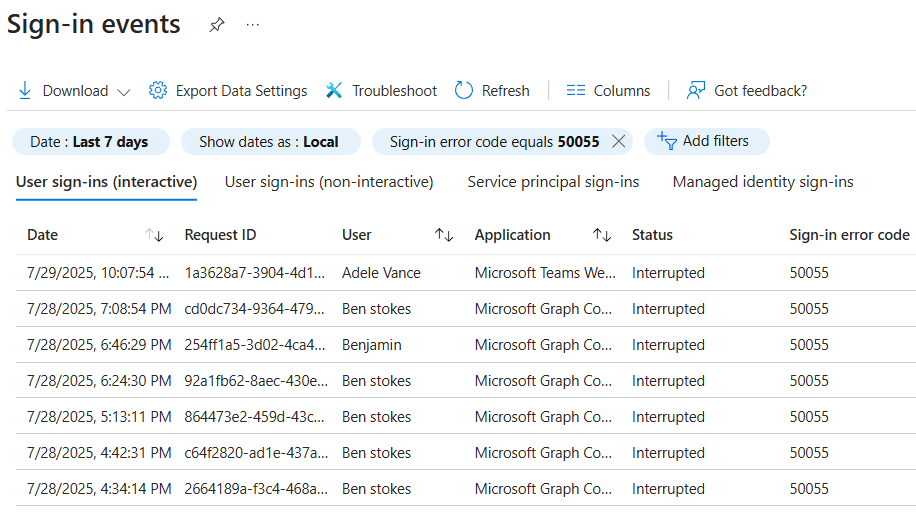
Under “User sign-ins (interactive)”, select Add filter and apply the following filters to locate relevant sign-ins related to invalid expired password:
Sign-in error code = 50055
Date = The default filter displays data from the last 24 hours, but you can extend the range to cover up to one month.
You can customize the fields further and filter the reports to show only the relevant activities, as seen in the screenshot.
This issue can be addressed by performing the required password update at the sign-in screen.
Important: Ensure that the new password adheres to Entra ID password policy settings, otherwise, the password update cannot be completed.
To update the password, you can perform the following actions:
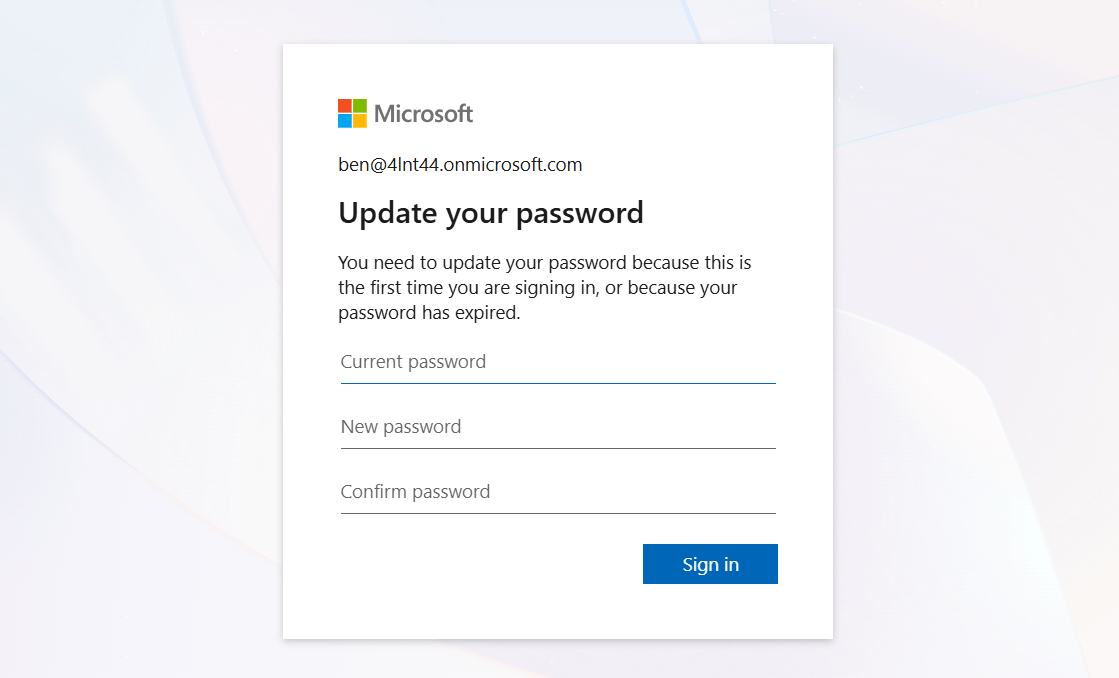
After entering your old password during sign-in, the "Update your password" window will appear.
Fill in the fields as follows:
Current password – Enter your existing password.
New password –Enter a new password that meets your organization’s password policy requirements.
Confirm password – Re-enter the same password as the new password.
Click Sign in to update your password.
Trigger a follow-up email for user password-expiration notification in Power Automate to reduce the risk of account lockouts.
Set timely password-change reminders using Power Automate to remind users to update their old passwords on time.

If these solutions don’t resolve your issue, feel free to leave a comment in the below ‘Discussion section’. We’ll assist you to the best of our ability. However, if none of the solutions worked, you may need to contact Microsoft Support for additional help.